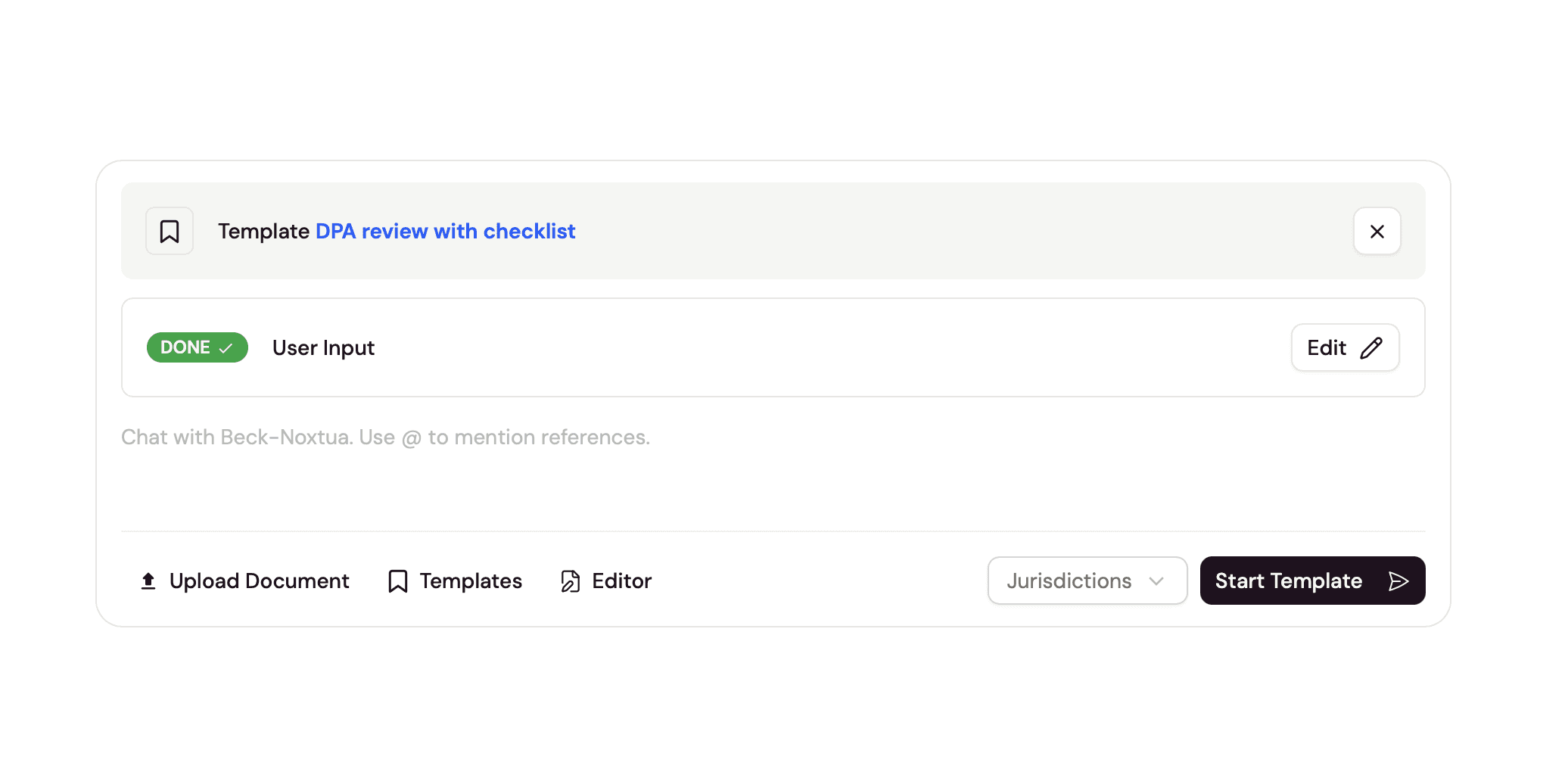
Templates are prompt presets you can use straight away to complete recurring legal tasks. In addition to creating your own templates within your organisation, Noxtua provides you with predefined templates developed and tested in practice by legal experts.
How to apply templates
Step 1: Access templates
You can access templates by clicking the "Templates" button below the chat.
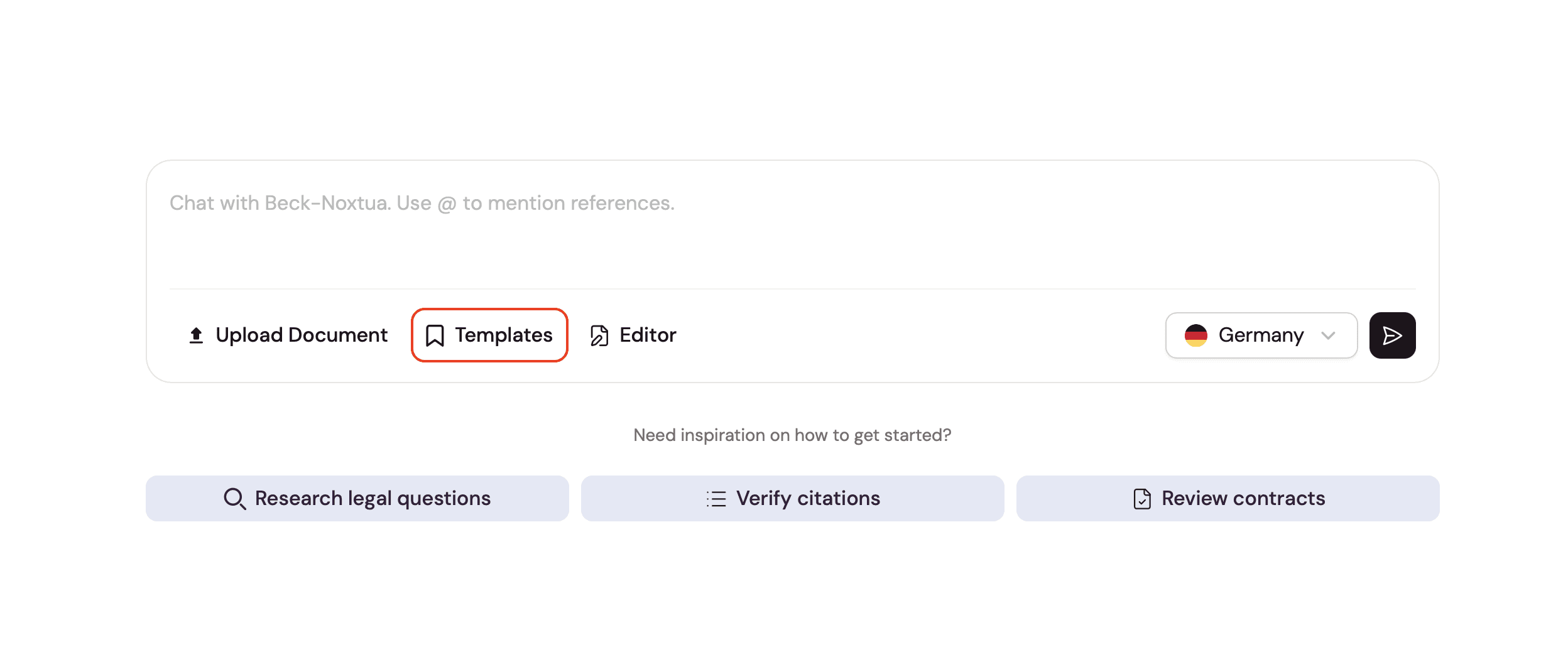
Step 2: Select a template
In the template overview, you will find three sections:
All templates: An overview of all templates, regardless of who created them.
By my organization: Templates created by you or other users within your organization.
By Noxtua: Pre-configured templates provided by Noxtua and legal publishers.
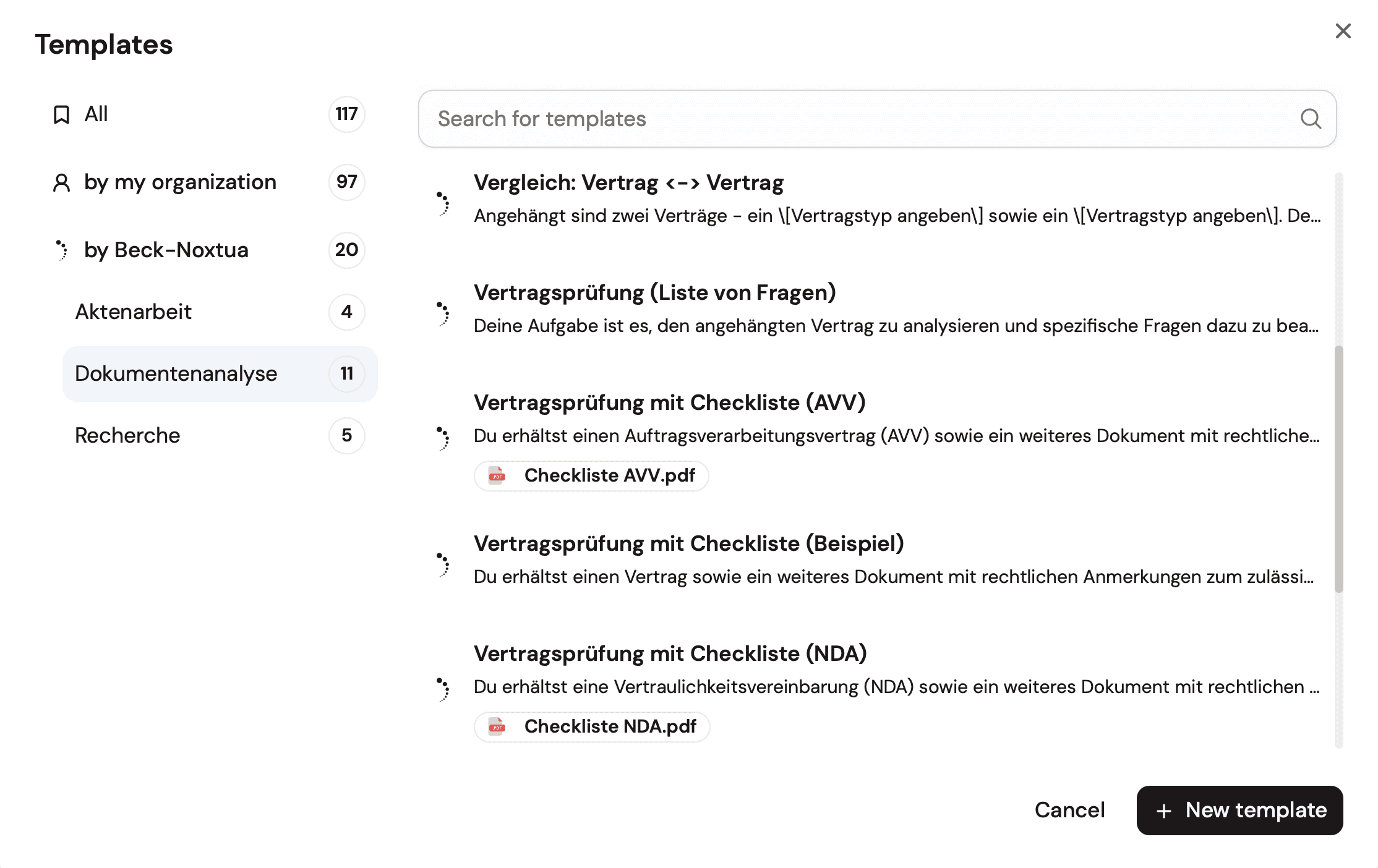
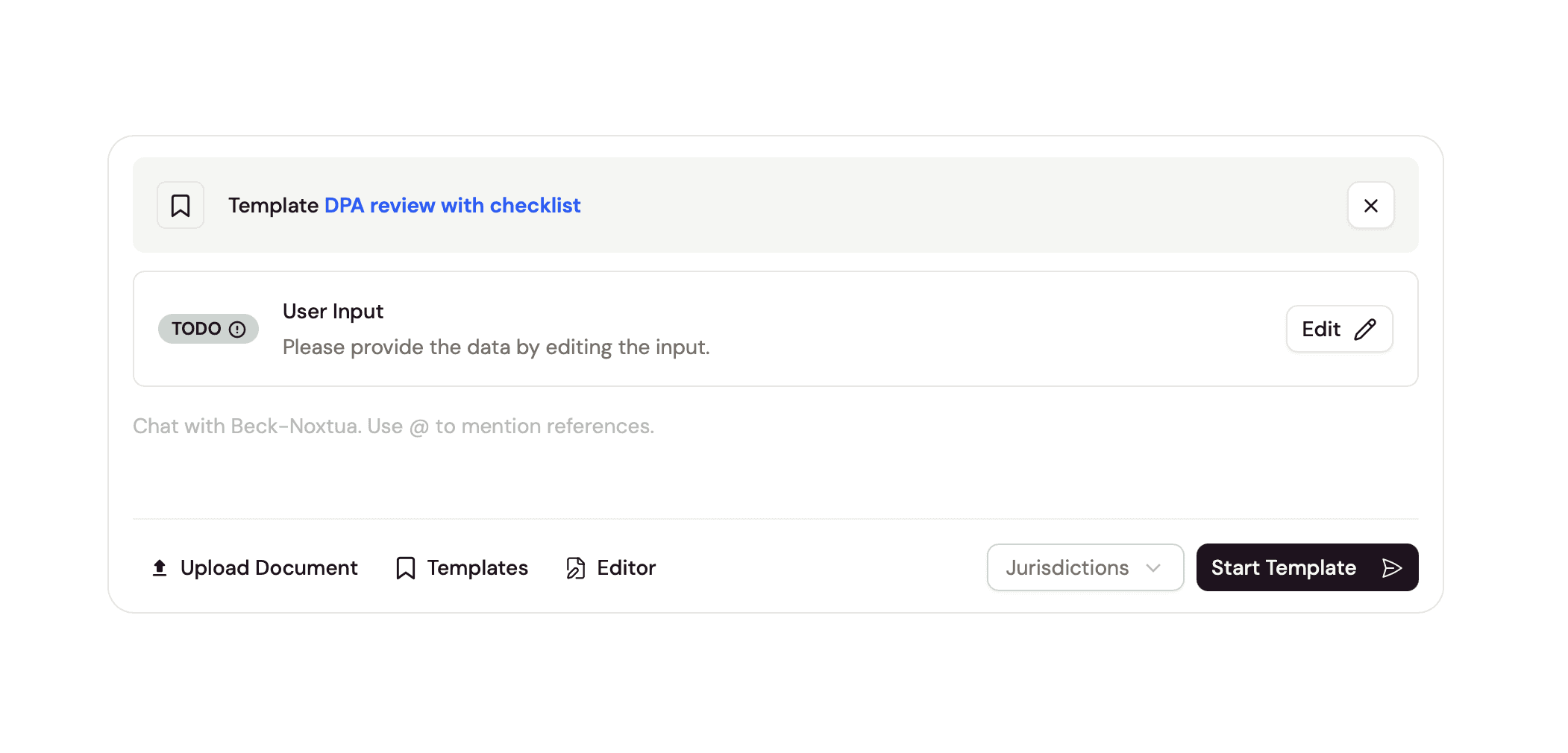
Click on the template you want to use and it will automatically be activated in your chat. You'll recognize this by the additional box that appears above the chat window.
Step 3: Review the template’s prompt
To preview the template prompt and required user inputs, click its name in this box.
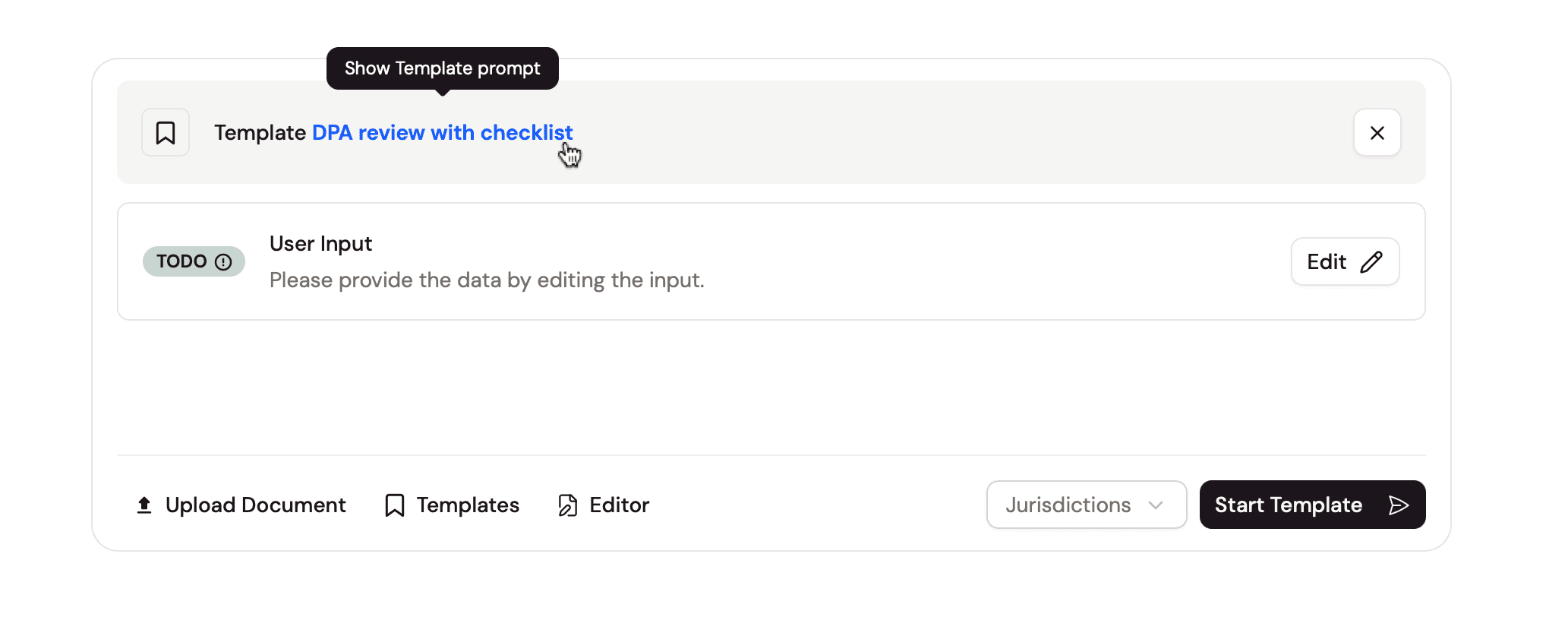
Step 4: Add user input
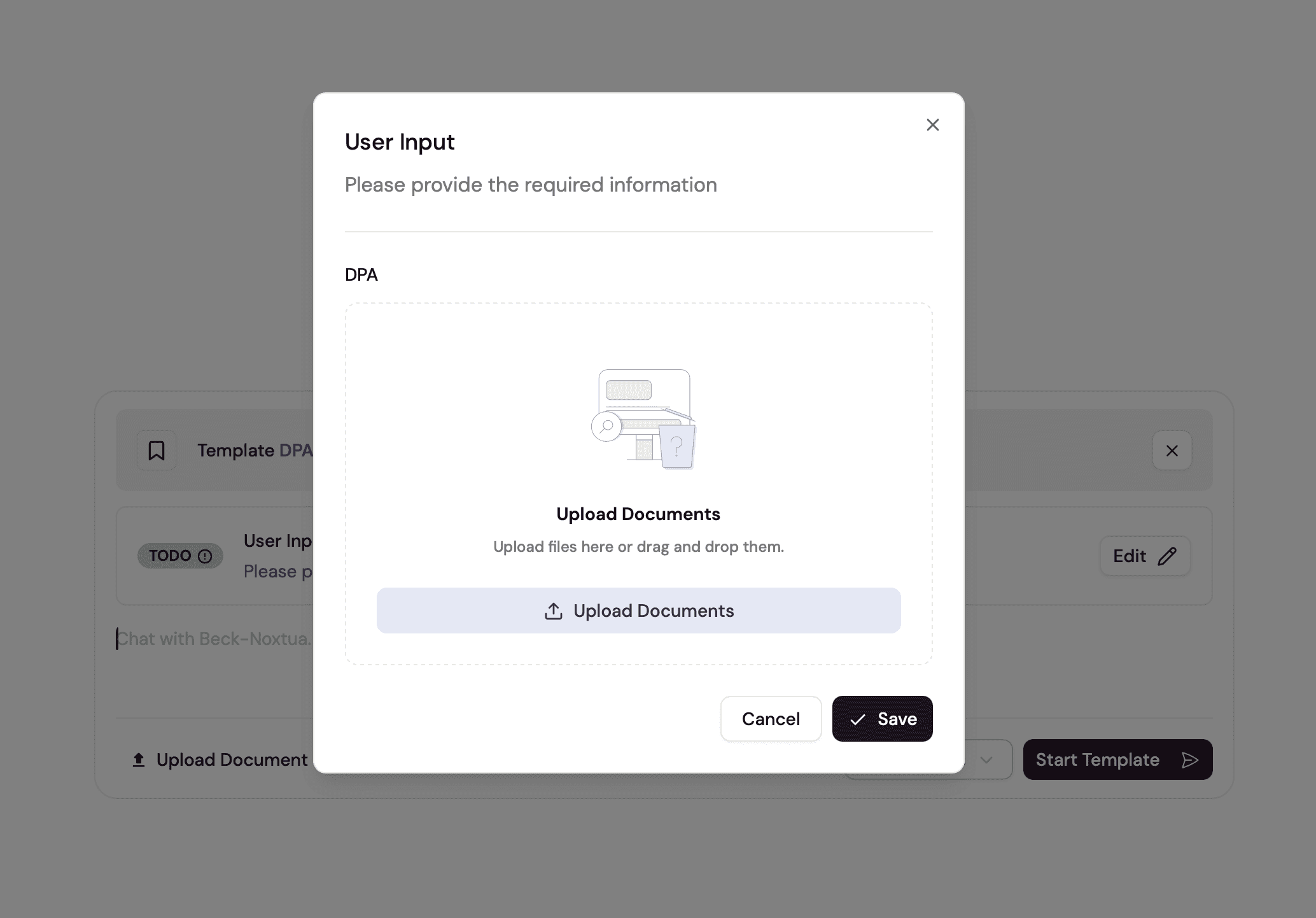
If the template requires specific information or documents from you, you'll see a box marked "Todo" below the template. Click "Edit" and a window opens prompting you to provide the required inputs, either as text entries or uploaded documents. Once you've provided all inputs, Noxtua inserts them directly into the template to complete it for your specific use case.
Step 5: Run the template
If you want to add any further information relevant to the task, you can enter it as usual in the chat window. Then click "Start Template" and Noxtua will begin processing your task.
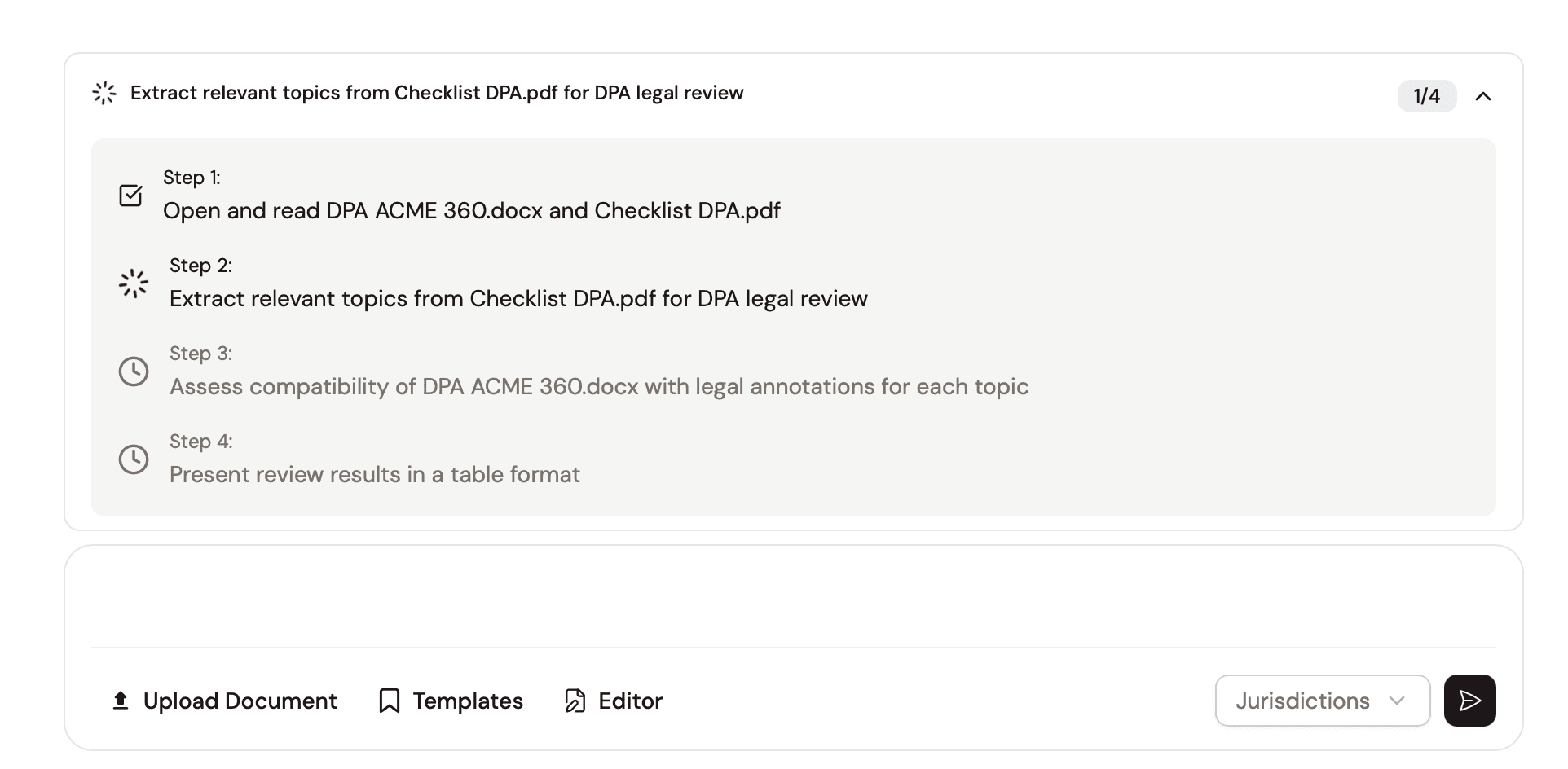
If the applied template includes multiple steps, Noxtua processes them as a workflow. During the run, you'll see an overview of all steps and can follow along live as Noxtua works through each one.
Managing and editing templates
Please note that templates created within your organization can only be created, edited, and deleted by users with the template manager role assigned. Predefined templates from Noxtua can be applied, but not edited or deleted.
Learn more about role management and how to set up templates in these articles.

Dennis Engelhard