
Please note: If your organization has an assigned admin, this user needs to enable Voice Input organization-wide before anyone can see and use the microphone button in the chat field. |
Speaking is faster than typing. That's especially true for longer prompts, when you need a response fast, or when you're on the go. Typing it all out by hand works, but it takes time.
What is Voice Input?
Voice Input lets you dictate your prompts instead of typing them. Activate Voice Input, speak your prompt, and Noxtua automatically will transcribe your speech into text that appears in the chat field, ready for you to review, fine-tune, and submit.
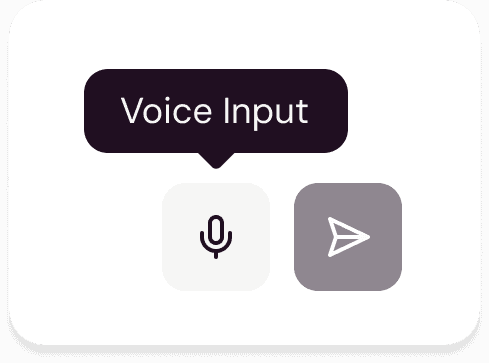
You'll find the Voice Input button at the bottom right of the chat field.

Your advantages with Voice Input
Faster input, less friction: Speaking makes it easy to elaborate on a prompt — you can add as much context and detail as you need without the friction of typing it all out. That's especially valuable for longer, more detailed queries, where typing would otherwise slow you down and make entering all the details a burden.
Legal-grade accuracy: Noxtua's speech recognition is built for legal language: it recognizes legal terminology and constructs, detects punctuation and proper casing, and provides you with accurate transcriptions for all common languages.
Full confidentiality: You can speak freely, knowing your voice and any spoken information remain fully confidential. Noxtua only transcribes your speech between the moments you start and stop Voice Input, and only once you have granted the necessary permissions in your browser. Your speech is processed only in temporary memory, never logged or stored anywhere, and is deleted the moment transcription finishes. All of this runs on a speech-recognition model self-hosted by Noxtua on European servers, meeting the security and compliance standards you are used to.
Greater accessibility: You get hands-free access to Noxtua – whether you prefer it, need it due to a physical limitation, or are working somewhere typing isn't practical.
How to use Voice Input
Step 1: Activation (only for organizations with admin users)
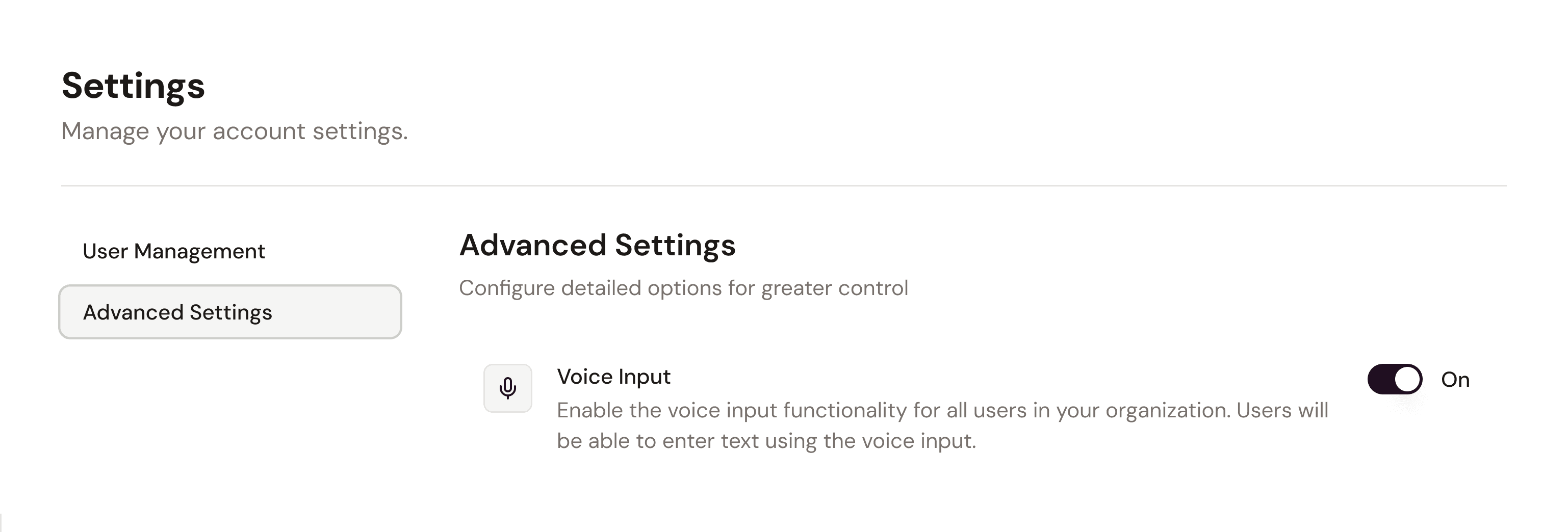
If your organization has an assigned admin, this user needs to enable Voice Input organization-wide before anyone can see and use the microphone button in the chat field. It can also be turned off at any time.
Admins can do this under Settings → Advanced Settings, where it can be activated for everyone in the organization.
Step 2: Browser-specific microphone permission
Once enabled for your organization, click the Voice Input button in the bottom right corner of the chat field. The first time you use it, your browser will separately ask for microphone access. If you deny it, Voice Input won't work in that browser until you grant permission.
Step 3: Dictate your prompt
Start Voice Input using the button with a microphone icon at the bottom right of the chat field, and start dictating your prompt.
Animated sound bars indicate that it's active and picking up your speech.
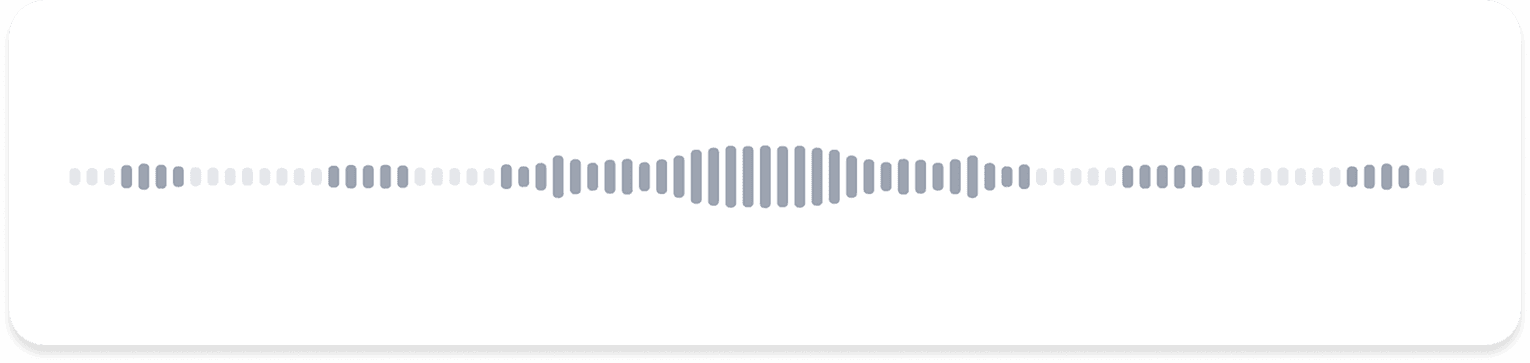
Press Complete on the right to process the transcription.
To discard a recording, press Cancel on the left while recording.
You can also dictate your prompt in several stages: start a recording, complete it, then start a new one. Each new transcription is added to the text already in the field, so you can build a longer prompt step by step.
Step 4: Finalize your prompt
Once you press Complete, your transcribed text appears in the chat field shortly after.
Before submitting your prompt to Noxtua, review the text to make sure everything was transcribed accurately, and edit if needed.

Dennis Engelhard