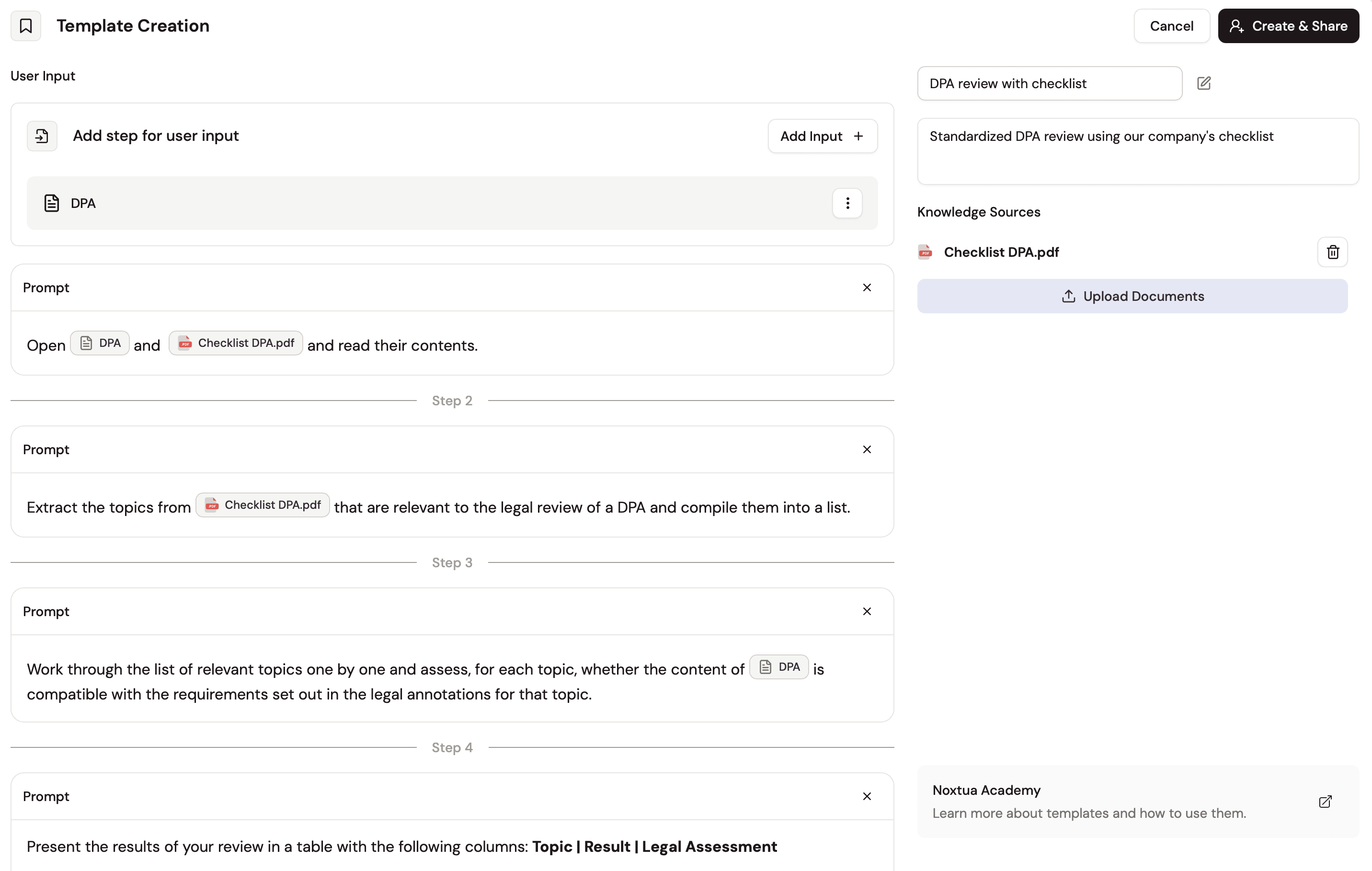
Migrating existing templatesTemplates that were created before Apr 15th 2026 need to be migrated to the new template experience by users with the template manager role assigned. To do so, open the template overview and click "Migrate to new templates" next to each template to open the new editor view. Once you click "Migrate & Share", the template is migrated and immediately available to all users in the new experience. Please note:
|
Required user role to set up templatesPlease note that only users with the template manager role assigned can create, edit, or delete templates within an organization. Learn more about role management in this article. |
Developing a good prompt
Before creating a template, make sure you have a prompt that reliably delivers good results. If you're not there yet, start by testing your prompt with Noxtua and refining it until the output consistently meets your standards with varying inputs. Time invested here pays off every time the template is used.
Learn more about best practices for legal prompting.
How to create a new template
Step 1: Create a new template
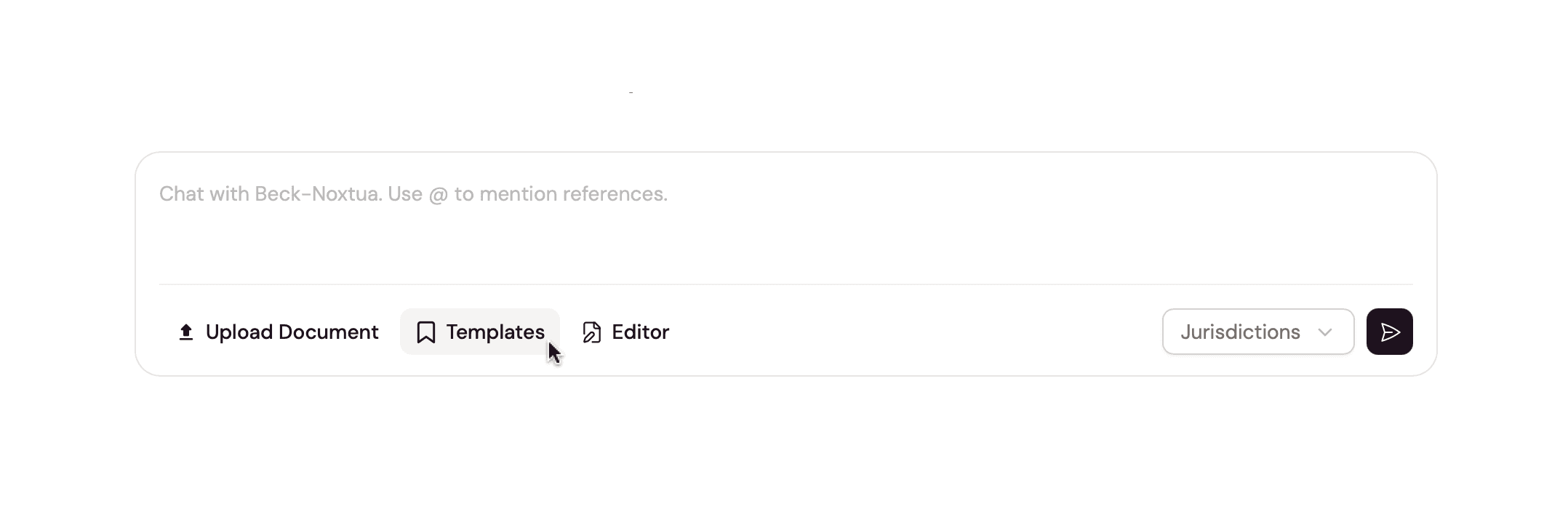
In the chat field, click "Templates" below the input field, then select "New Template" in the bottom right of the window that opens.
Step 2: Name your template and add a description
You are now on the overview page, where you can add all the information to design your new template.
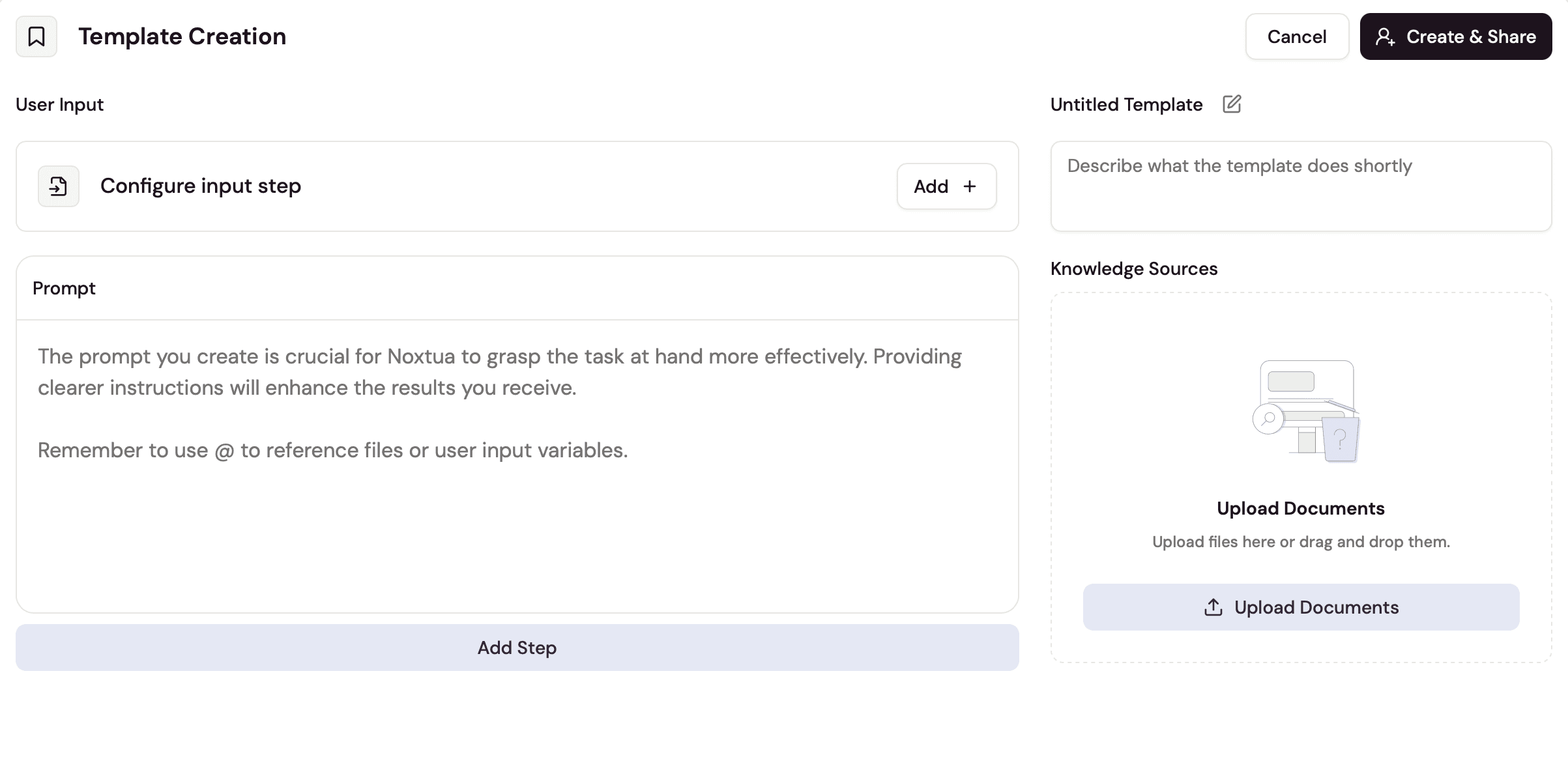
Start by giving your template a clear, descriptive name and add a short description that tells colleagues what the template does and when to use it. Both can be edited at the top right of the page.
Step 3: Define workflow steps
If the task your template is meant to solve involves multiple steps, you can break it into a sequence that forms a complete workflow. Noxtua supports up to five steps per template.
Before you start on the first step, it helps to know how many steps your template will need and what each one should do. You can always add or remove steps later.
To add a new step, click “Add step” at the bottom of the screen.
Step 4: Add user input fields
If running the template requires specific information or documents from the user, you can define input fields that prompt the user to provide the required information.
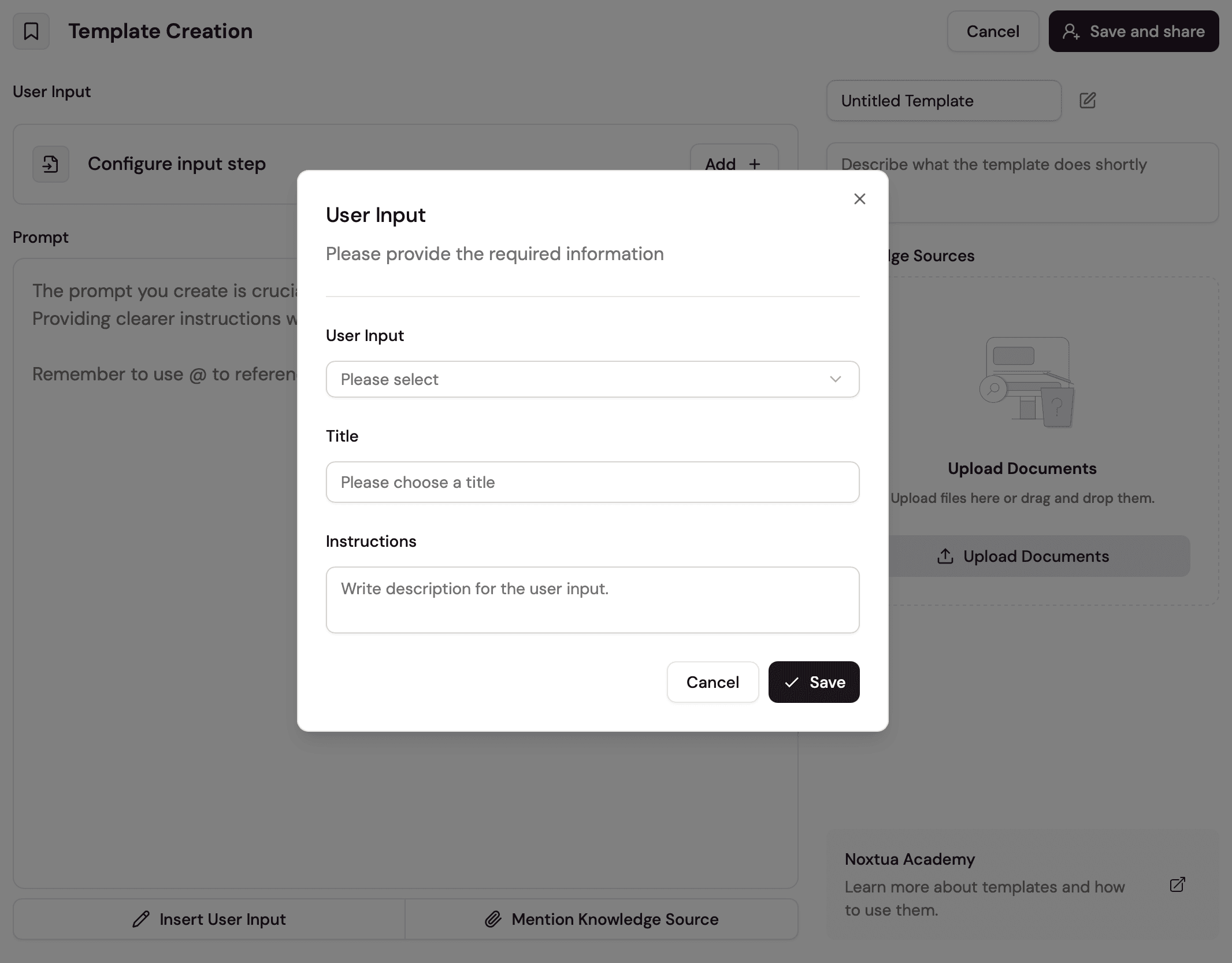
Under the section “User Input” on the top left, click the "Add" button to add an input field. A new window opens asking you to define the following parameters:
User Input: The type of input the user needs to add. Choose between text input or file input.
Title: Give the input field a name that clearly tells users what input is required from them.
Instructions: Give users more guidance on which input is expected.
Save your configuration and add further input fields as needed for your use case.
Step 5: Add knowledge sources
If your template requires reference documents, such as a checklist, playbook, or set of review criteria, upload them under "Knowledge Sources” on the right side. These documents are automatically available as guidance for Noxtua, every time the template is run, without users needing to upload them.
Step 6: Add your prompt
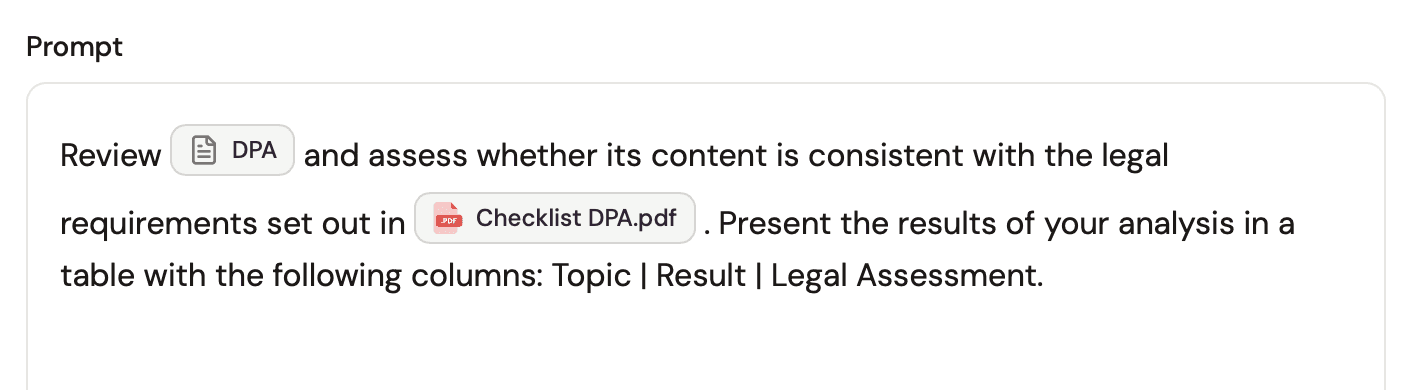
Enter a prompt that serves the use case of your template well in the “Prompt” section.
Now it’s time to add the user inputs and knowledge source documents that you defined in earlier steps to your prompt. To do this, you have two options:
Type @ in the prompt, opening a drop-down for you to select the respective input.
Use the "Insert User Input" and "Mention Knowledge Source" buttons at the bottom of the prompt field.
Step 7: Save and test
Click "Create & Share" to save your template and make it available to other users within your organization. To make sure everything runs as intended, open the chat, select your new template, and run it with a realistic input to check whether the output meets your expectations.
Step 8: Edit or delete your template
Of course, you can always go back to your template and edit or delete it at any time. Simply open the template overview via the chat field again and you see a button to edit or delete your template.


Dennis Engelhard