Projects
Keep matters together – files, context, and past work – in one place.
Written By Lina Pridat Hauschild
Last updated About 6 hours ago
Overview
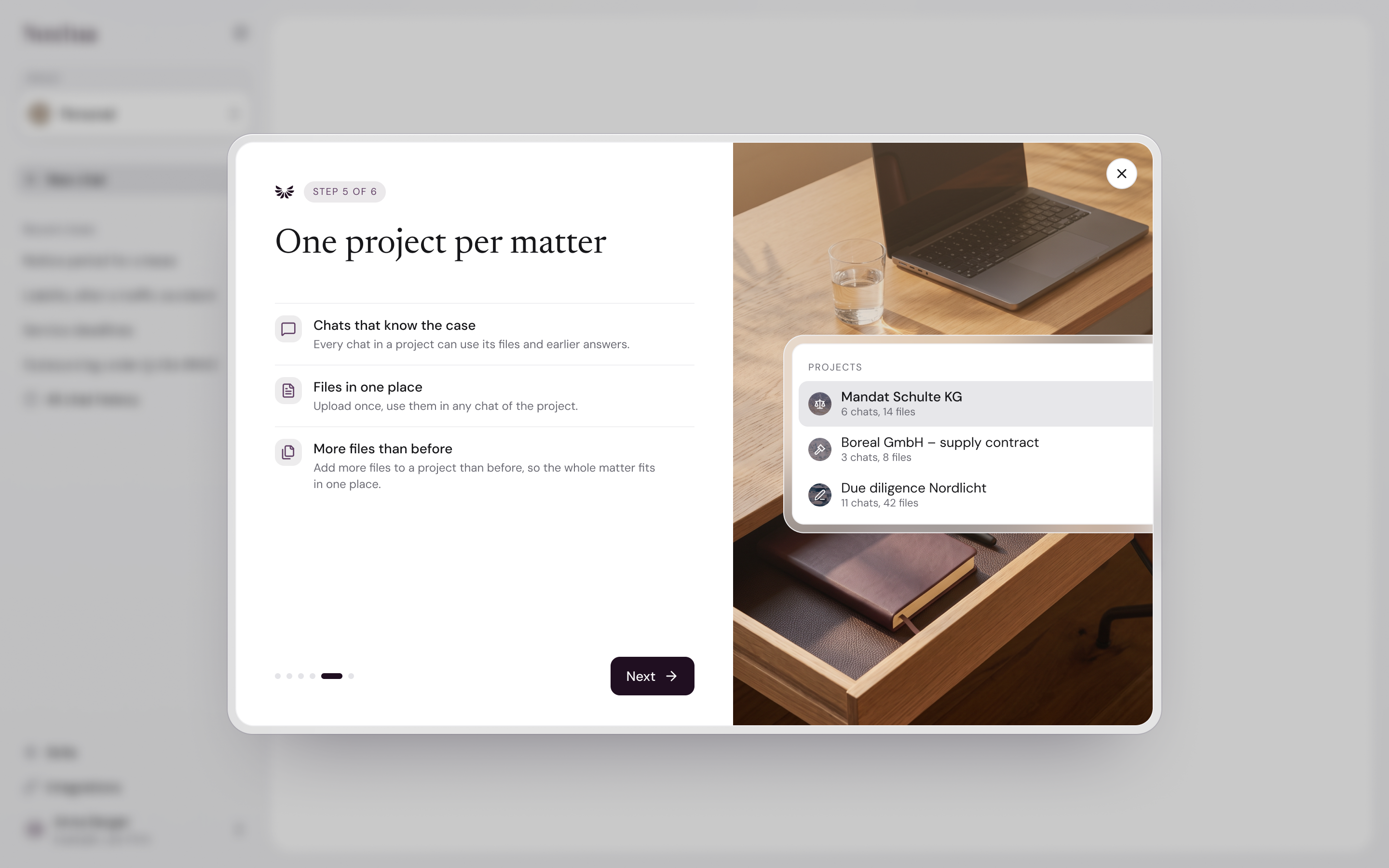
Projects keep everything that belongs to one matter in one place: its chats, its files, and the results you produce along the way. Instead of re-uploading the same contract or re-explaining the background in every new chat, you add it to the project once, and every chat in that project can access it.
Projects live in the Noxtua web app. You switch between them using the project switcher under Space at the top of the sidebar. Chats you start outside a project remain in your Personal space.
Projects connect to Noxtua:
Chats started within a project can access all of the project's files.
Any output created by Noxtua and saved using "Save to project files" can appear on the project's Files page.
Skills apply to every project, so your way of working goes with you.
What you can use this for
Run a matter from start to finish. Create one project per matter, such as a merger control filing, and keep all chats and documents for that matter together.
Work from a shared file base. Upload the case file once as project knowledge so every new chat can draw on it without further uploads.
Review many documents at once. Upload a set of contracts to a project and run a request across all of them.
Keep useful results. Save drafts and documents Noxtua creates in a chat to the project files so they are ready for the next step.
File away a chat that grew into a matter. Add a Personal chat to a project, and its files follow it.
How it works
Create and organize projects
A project is an empty space for chats and files that belong together. Only you can see the projects you create.
In the sidebar, open the project switcher in Space.
Select New project.
Enter a Name, for example, Fusionskontrolle Meyer AG.
Choose a Background (Marble, Onyx, River, Sand, or Terrazzo) and an Icon (such as Court, Gavel, Scale, Book, or People). The background and icon identify the project in the sidebar, history, and file lists.
Select Create project.
To change a project later, open Project actions in the space switcher, click on the three dots (...), and select Edit. You can change the name, background, and icon, then select Save.
To add an existing chat to a project, open the chat's menu, select Add to project, then choose a project or create a new one. The chat's files move with it.
Result: The project appears in the project switcher, with the note Only you can see this project. Chats outside a project stay in your Personal space, the default space visible only to you.
Work with project files and project chats
Each project has dedicated pages for files and chats, making it easy to see everything in a matter at a glance.
Open the project from the project switcher.
Go to Files to see all of the project's files, in two groups:
Project knowledge – files added directly to the project. They are read in every chat.
From chats – files uploaded in a chat, listed under the conversation they came from.
To add files, upload them to the Files page or in a chat. You can upload documents, spreadsheets, presentations, text, images, emails, and zip archives.
To keep a file Noxtua created in a chat, select Save to project files on the file card.
Go to Chats to see all chats in the project, with the most recently active first. Open any chat to continue where you left off.
Result: Every chat in the project can access all of its files, whether they were added as knowledge or uploaded in another chat. In a chat, you can also select files From this project and its chats.
Delete a project
Deleting a project is permanent. It removes the project, along with every chat and file in it.
Open the project switcher and select Project actions next to the project.
Select Delete.
Read the confirmation: “[Project name]” and every chat and file in it will be deleted. This cannot be undone.
Confirm the deletion.
Result: The project, its chats, and its files are gone for good, and the stored documents and their extracted text are erased. A project you delete yourself cannot be restored. Before deleting, download any files you want to keep.
To remove a single file instead, delete it on the project's Files page. No chat in the project can access it afterward.
Data and security
Private by default. Only you can see the projects you create, and your Personal space is visible only to you.
Files stay in their project. A project's files are read only by the chats within that project.
Deletion is final. When you delete a file or a project, the stored document and its extracted text are erased. A deleted project cannot be restored.
Retention. Your organization's retention policy can remove projects that have not been opened for some time. Until the deletion date, an administrator can recover such a project; opening a project extends how long it is kept.
Limits
Each file can be up to 100 MB. Files that are too large or of an unsupported type aren’t added, and Noxtua tells you which ones. A file Noxtua can’t read is still added but marked as failed, with the reason and an option to retry. A zip or email that can’t be opened is named in a message. For full specifications, see file limits and specifications.
FAQ
Can my colleagues see my projects? No. Only you can see the projects you create, and the same applies to your Personal space.
What is the Personal space? It is your default space. Every chat you start outside a project is stored there, with the most recently active first.
Do I need to upload a document again for every chat in a project? No. Every chat in a project can access all of its files, including those uploaded in other chats within the same project.
What is the difference between project knowledge and files from chats? Project knowledge is added directly to the project. Files from chats are uploaded while working in a chat and appear under that chat. Every chat in the project can access both.
Can I move an existing chat into a project? Yes, if the chat is in your Personal space. Open the chat's menu and select Add to project. Its files move with it. A chat that is already in a project cannot be moved to another project.
Can I rename a project or change its icon? Yes. Open Project actions and select Edit to change the name, background, and icon.
Can I get a deleted project back? No. Deleting a project permanently removes it, including all of its chats and files. Only projects removed by your organization's retention policy can be recovered by an administrator before their deletion date.
Which file types can I upload? Documents, spreadsheets, presentations, text, images, emails, and zip archives, up to 100 MB per file. For full specifications, see file limits and specifications.
Was this helpful?