Editor
Create and edit Word documents while staying in control
Written By Lina Pridat Hauschild
Last updated About 6 hours ago
Overview
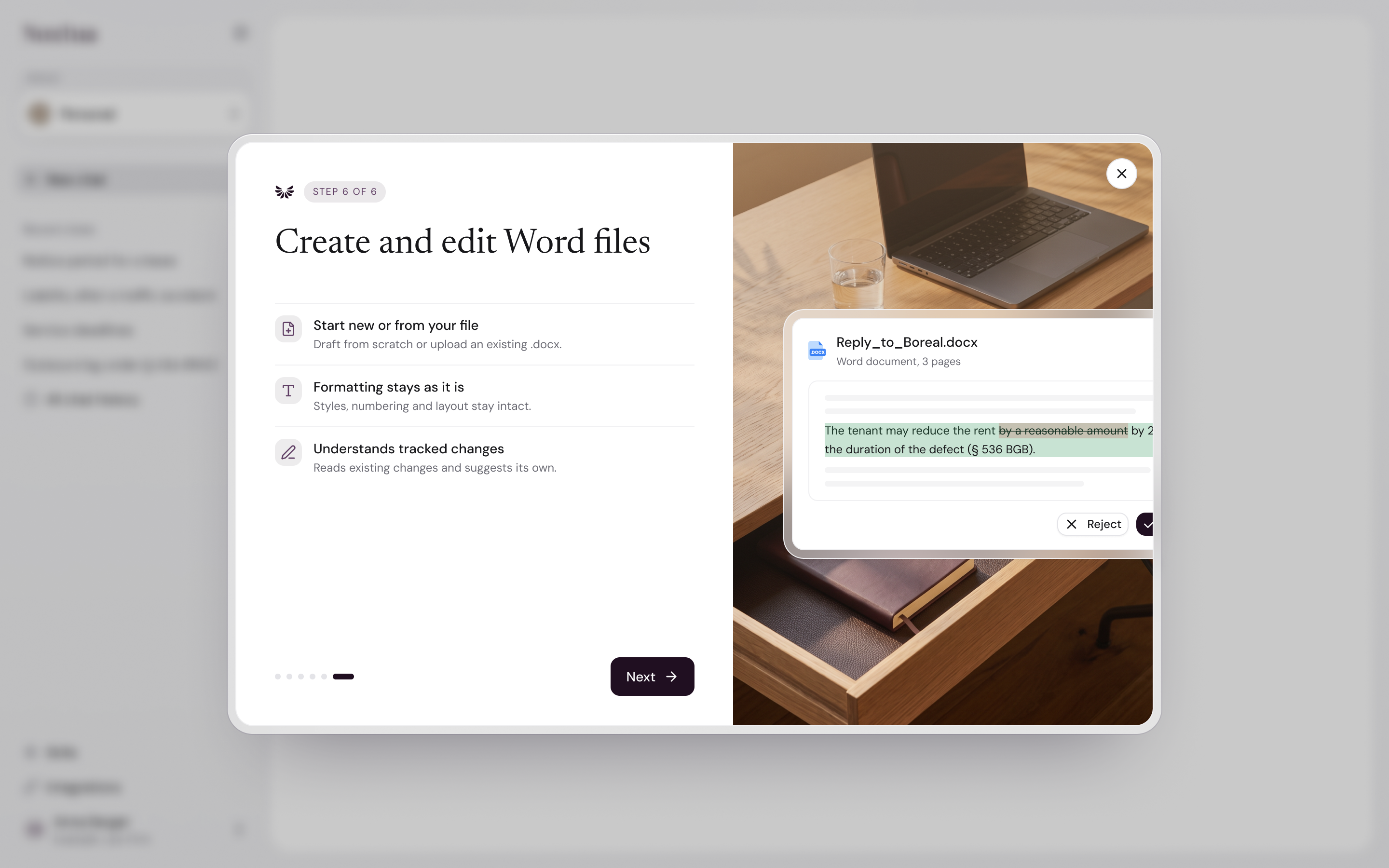
Legal drafting means writing in Word: contracts, letters, and pleadings. You need clean formatting and a clear record of every change. Drafting with Noxtua writes and edits Word documents for you and shows every edit as a tracked change you can accept or reject.
Ask in the chat. Noxtua creates a new Word document or edits one you uploaded. New documents appear as outputs in the chat. When Noxtua edits a document you uploaded, it saves its changes into that file as tracked changes.
Where it lives: Drafting runs in the chat of the Noxtua web app, in your Personal space and inside projects. Word documents open in the editor beside the chat, where you can review changes and keep writing. To continue in Microsoft Word, download the .docx.
How it connects:
Research grounds a draft in the law and in your own documents.
Projects keep the documents and drafts for one matter together. You can save a draft to the project so every chat in it can use it.
Skills run ready-made routines, such as a contract review, that can produce a redlined document.
Export chat saves the whole chat with its sources as a Word document.
What you can use this for
Redline a contract from the other side. Upload the draft and ask Noxtua to align it with your position. Every edit appears as a tracked change by Noxtua, so you decide clause by clause.
Draft a letter or memo from scratch. Describe what you need, for example, a warning letter or a client memo. Noxtua creates a new Word document that you can review, edit, and download.
Fill in a template using its existing styles. Ask Noxtua to fill in party names, dates, and clauses in your firm's template. New text adopts the styles already in the document.
Revise a draft based on research. Ask whether a clause complies with the law, then ask Noxtua to fix it in the same chat. The edit appears as a tracked change next to the cited sources.
Apply the same change across several documents. Tag the files in one message, for example, to update a governing-law clause. Noxtua edits each one, including files that are not open.
How it works
Upload a Word document
Purpose: Provide Noxtua with the document you want to work on.
In the chat, click + (Add files or skills) and choose Upload from computer.
Or drag the file into the chat. The message “Drop files here to upload” appears. You can also paste a file into the message field.
Wait until the file finishes processing. A spinner shows on the file in the meantime. If processing fails, a warning icon appears instead. Click Retry processing.
In a project, you can also add files to the project's Files page using Add to knowledge. Every chat in the project can then access them.
Result: The document is attached to the chat. Noxtua can now read and edit it. Noxtua saves its edits to this uploaded copy. The original file on your computer stays unchanged.
Tag a document in your message
Purpose: Tell Noxtua exactly which file to work on.
In the message field, type @. The same menu opens as with +.
Under Documents, select the file. In a project, the list shows files From this project and its chats. In your Personal space, it shows files From this chat.
The file appears in your message as
@"Lease.docx".To work on several documents, tag each one.
If a document is already open in the editor, you can simply write "this document". To point Noxtua to a specific passage, highlight it in the editor before sending your message.
Result: Noxtua works on the documents you named and on the highlighted passage, if you selected one.
Ask Noxtua to edit a document
Purpose: Get changes made to the document itself, not as text in the chat.
Write what you want changed, for example: "Shorten the notice period in @"MSA.docx" to 30 days and add a data-protection clause after § 12."
Press Enter. If the document is open in the editor, the changes appear there while Noxtua works. If it's closed, a spinner shows on the file until Noxtua finishes.
When it is complete, the chat confirms that Noxtua edited the document. Click it to open it in the editor.
Result: Every change appears as a tracked change by the author Noxtua. New text adopts the formatting of the location where it is inserted, so it matches the surrounding fonts, numbering, and styles.
Review tracked changes
Purpose: Decide which of Noxtua's changes to keep.
Open the document and choose the Review tab in the editor toolbar.
Use Previous change and Next change to step through the edits. The counter shows your position, for example, 3 of 12.
Select a change and click Accept or Reject. Each card shows its type: Inserted, Deleted, Replaced, or Formatted.
To apply or reject all of Noxtua's changes at once, use Accept all or Reject all.
Type directly in the document to make your own edits. Unlike Noxtua's edits, yours are not tracked.
Tip: You can edit the document yourself at any time. Click where you want to make a change and type, just as you would in Word. Your changes save automatically a few seconds after you stop typing.
Result: A clean document with the changes you chose. Tracked changes by other authors, such as those from opposing counsel, are not affected by Accept all or Reject all. You decide those one by one.
Create a new Word document
Purpose: Start a draft from scratch.
Ask for the document you need, for example: "Draft a warning letter to the tenant for late payment. Name the file Late payment warning."
Noxtua creates a new Word document and shows it as a card in the chat. It also appears under Outputs in the side panel.
Click Open to read and edit it in the editor.
To make a change, ask in the same chat. From the second request onward, Noxtua's edits appear as tracked changes.
To download it as a Word file, click Export, then Download original (.docx).
Result: A new Word document is saved as an output of this chat. The first version arrives clean, without tracked changes.
Save a draft to your project
Purpose: Keep a draft with the matter so other chats in the project can use it.
Work in a chat inside a project.
On the document's card, click Save to project files. The button changes to Saved to project files.
Open the project's Files page to find the document.
Result: The draft is part of the project, and every chat in the project can access it. Until you save it, the output is visible only in the chat that created it. In your Personal space, outputs remain in their chat.
Availability
Drafting is part of the chat in every Noxtua product and is available to everyone who uses Noxtua: in Noxtua, Beck-Noxtua, MANZ-Noxtua, and Swiss-Noxtua, across all plans and for all roles.
Data and security
Edits go into the uploaded copy. Noxtua saves its edits to the copy you uploaded, as tracked changes you can accept or reject. The original on your computer stays unchanged.
Every AI edit is visible. Noxtua's changes are tracked by the author Noxtua. Nothing it changes is hidden, and you decide what stays.
Drafts remain where you created them. A new document is visible only in the chat that created it until you save it to a project.
Separated by organization. Your organization's chats and documents are kept separate from every other organization's data.
Retention follows your organization's settings. If your organization uses auto-delete, chats and their drafts are deleted when their retention period ends. Chats in a project follow that project's retention period instead.
Limits
FAQ
Does Noxtua change the file I uploaded? Yes, but only as tracked changes you can accept or reject. The original on your computer stays unchanged. To download the edited version, open it and click Export > Download original (.docx).
Will my formatting survive? Yes. New text adopts the formatting of the location where it is inserted, and Noxtua only uses styles that already exist in the document. Some limitations apply (see limitations table).
Can I see what Noxtua changed? Yes. Every edit is a tracked change by the author Noxtua. Open the Review tab and step through them with Next change, or accept or reject all of them at once with Accept all or Reject all.
Why does my new document have no tracked changes? Noxtua delivers the first version of a new document clean. Edits you request afterward appear as tracked changes.
What happens to tracked changes from other authors? They remain in the document. Accept all and Reject all apply only to Noxtua's changes, so you decide other authors' revisions one by one.
Can I work on the document in Microsoft Word? Yes. Download the .docx and open it in Word. Tracked changes are included. Edits you make in Word are not synced back to Noxtua.
How do I keep a draft for a specific matter? Create it in the matter's project, then click Save to project files on the document's card. Every chat in the project can then use it. Outside a project, the draft is available only in the chat that created it.
Was this helpful?