Developing a good prompt
Templates are saved prompts that you can use in Beck-Noxtua to quickly process recurring tasks. But before you create a prompt template, you need to know what use case you need it for and then develop a good prompt. If you don't yet have a prompt that you know generates good results, we recommend the following approach:
Start with a prompt that fits your use case and let Beck-Noxtua generate results. If these don't meet your standards, try adjusting the prompt to eliminate the weaknesses in the result. Once you're generally satisfied with the output, you should next test the prompt with different tasks – meaning various documents or content that need to be processed. This ensures that the quality of results remains consistent.
While developing a good prompt may take some time in the short term, it's time very well invested for the medium to long term, as you'll be able to work more efficiently in the future using this prompt on a recurring basis.
How to set up a new template
Step 1: Create a new template
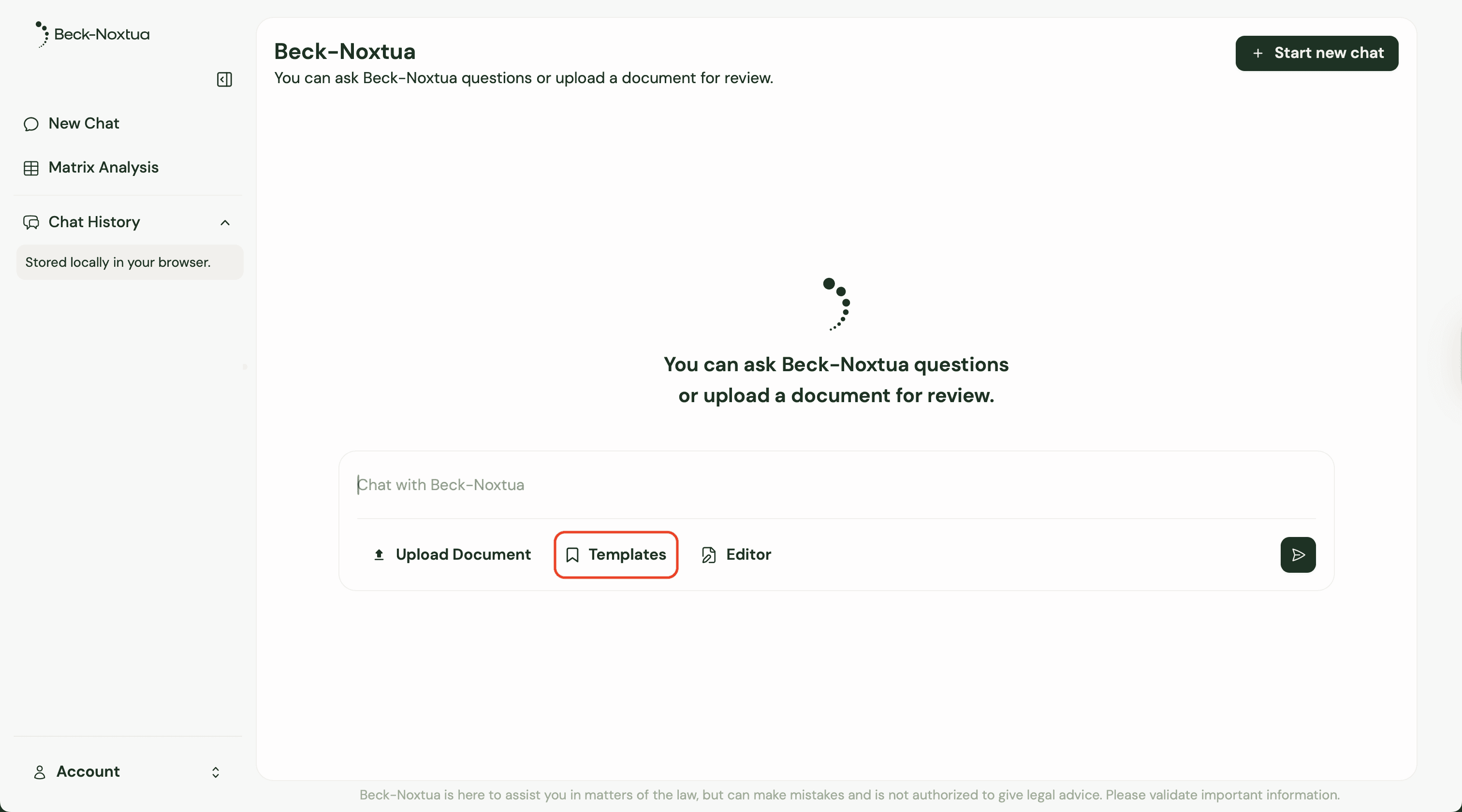
Open the chat in Beck-Noxtua and click "Templates" below the input field.
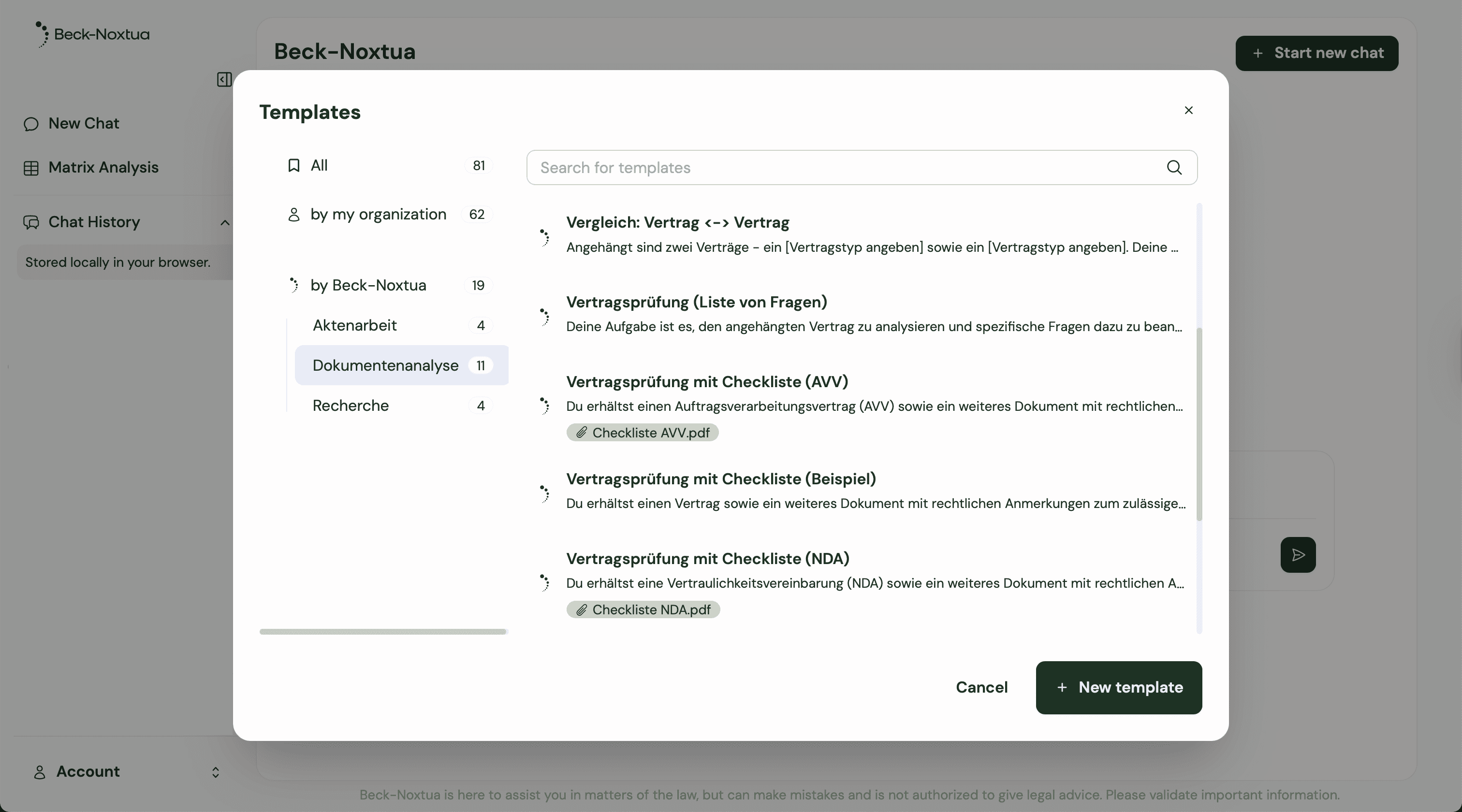
A window now opens showing templates created in your organisation and predefined ones from Beck-Noxtua.
To create a new template, select "New Template" in the bottom right.
Please note: Your organization's templates can only be created, deleted, and edited by users with the Template Manager role. Learn more about role management in this article.
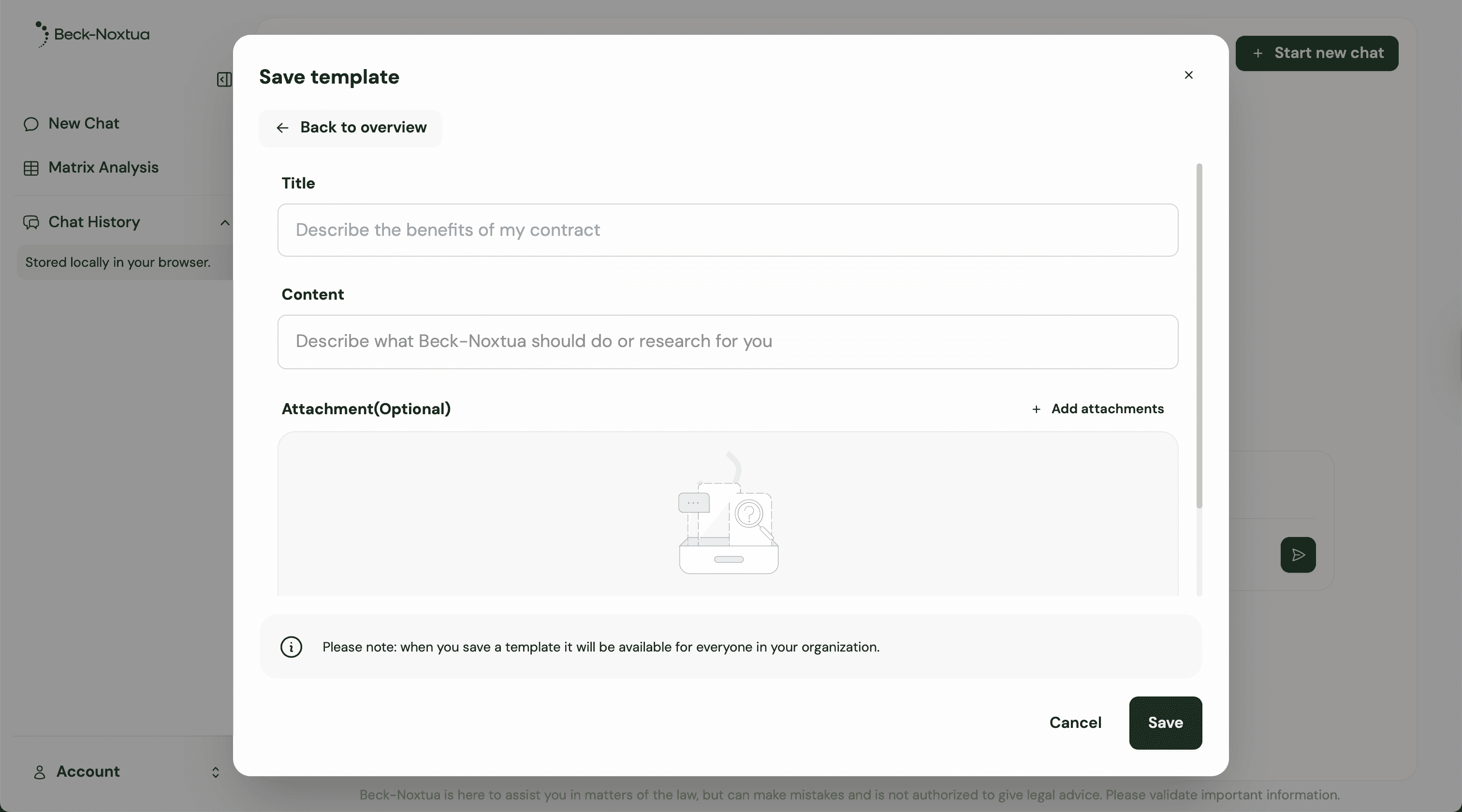
Step 2: Assign a meaningful name
Give your template a name that makes it immediately clear what it's for. "NDA Review (English)" is much more helpful than "Document Review" or "Template 1." You'll be grateful for this clarity later, especially when you have multiple templates and share them with colleagues.
Step 3: Insert your proven prompt
In the next input field, insert the prompt you previously tested and optimized. But don't worry: you can always adjust this prompt within the template itself.
Step 4: Provide context documents
If your template requires additional reference documents, you can attach them, too. For a contract review, this could be your contract playbook with corresponding review criteria. These documents are then automatically available each time you use the template, without having to upload them again each time.
Step 5: Save and test immediately
After clicking "Save," you can try out your template right away. Open the chat, select your new template, and give the AI an appropriate task. Look closely at the result: Does it meet your expectations? If not, you can edit and improve the template at any time.

Dennis Engelhard