Skills
Teach Noxtua your way of working once, then reuse it every time
Written By Lina Pridat Hauschild
Last updated About 5 hours ago
Overview
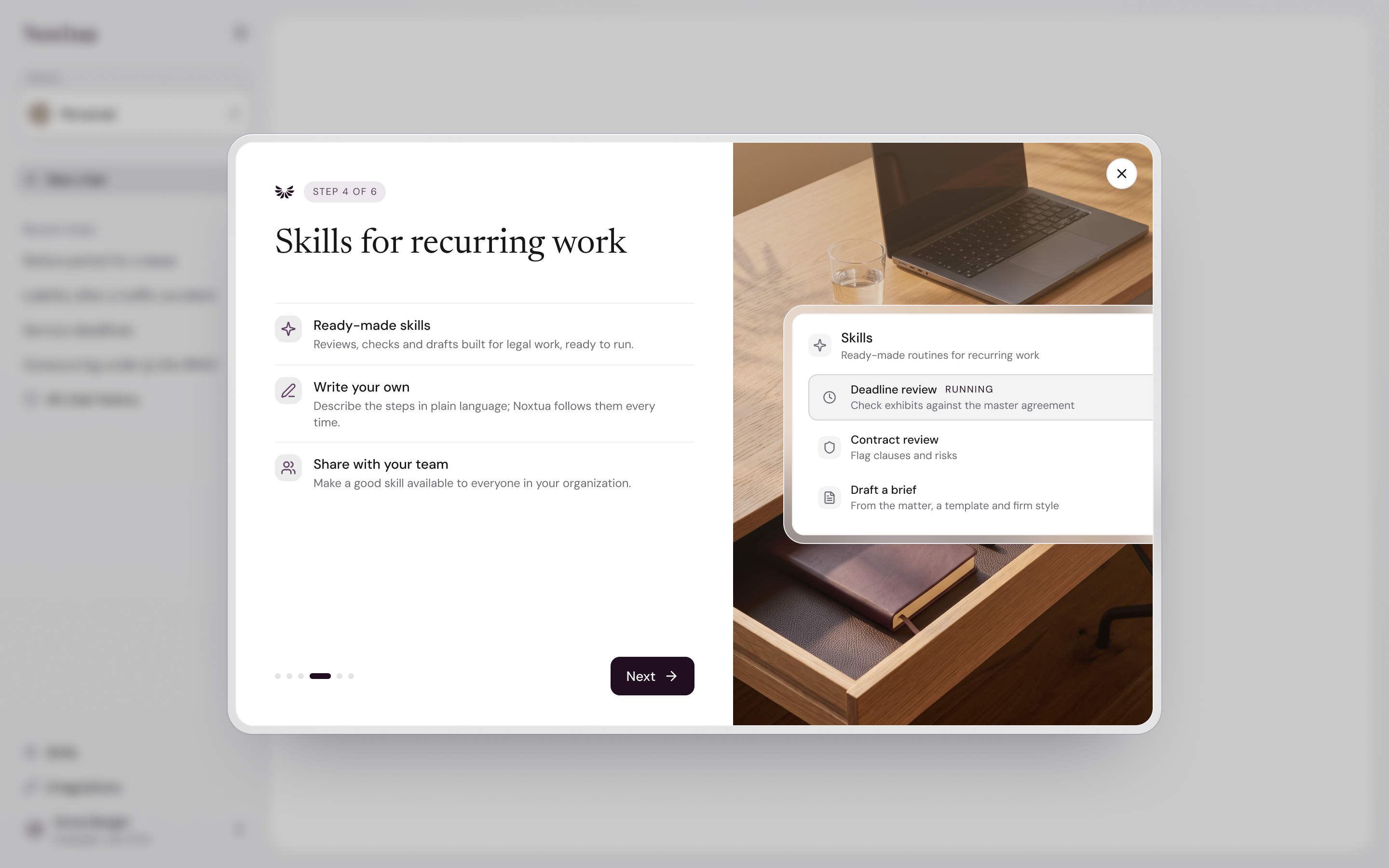
Skills save you from explaining the same way of working in every chat. A skill is a set of instructions you write once, such as how your firm calculates ZPO deadlines or how you want a contract review laid out. Noxtua then applies it automatically whenever a request matches.
Each skill has a name, a description of when to use it, and instructions. It can also include subskills: reference materials such as citation tables, checklists, or the relevant pages of a template, which Noxtua reads only when needed.
You can write a skill yourself on the Skills page of the Noxtua web app. You can also ask Noxtua to write one for you in a chat, for example, right after it finishes a task the way you like it. Skills apply to every chat and every project, and they work alongside the built-in research skills for your jurisdiction. Over time, your skills become a personal library of how you work.
What you can use this for
Deadline calculation. Write down how your practice calculates and documents procedural deadlines so that every deadline answer follows the same steps and format.
Contract review. Set the clauses to review, the risk levels you use, and the structure of the review memo, then attach your clause checklist as a subskill.
Drafting in firm style. Store your firm's style rules and a template as subskills so that briefs and letters come out in your house style.
Citation and source rules. Tell Noxtua which sources to rely on and how to cite them, with a citation-forms table as a subskill.
Recurring client work. Turn a task you just finished in a chat into a skill so the next one starts from the result you approved.
How it works
What skills and subskills are
A skill tells Noxtua how to handle a specific type of task. It has four parts:
A subskill is reference material that belongs to one skill: a template, a checklist, a citation table, or a glossary. Each subskill has its own name, a description of what it contains, and its text. Noxtua does not read subskills every time. It opens a subskill only when the skill's instructions point to it and the task needs it. This keeps long material out of the way until it matters.
When Noxtua uses a skill in a chat, you see it in the answer's activity, for example, Skill loaded: "Fristen nach der ZPO" and Resource loaded: "Citation forms".
Create a skill manually
Use this when you know exactly how the task should be completed.
Open Skills in the Noxtua web app.
Select Add skill.
Enter a Skill name.
Under Description, specify when Noxtua should use the skill.
Under Instructions, write the steps. To speak instead of typing, select Dictate a skill: Noxtua turns what you say into clear written instructions. If the field already contains text, choose Replace or Append.
Optional: choose an icon and add subskills (see below).
Select Create.
Result: The skill appears on your list, installed, and applies to every project from your next message.
Create a skill in the chat
Use this when you have just completed a task with Noxtua and want to keep the approach, or when you would rather describe the skill rather than write it.
In any chat, ask Noxtua to create a skill, for example, "Turn what we just did into a skill" or "Create a skill for reviewing NDAs the way I like them."
If your request is unclear, Noxtua asks one question first. Otherwise, it drafts the skill right away.
The draft opens in the skill editor beside the chat, marked as Proposed skill. You can watch Noxtua write it.
Review the name, description, instructions, and any subskills. Edit anything you want to change.
Select Accept to save it or Discard to drop it. The chat waits until you decide.
Result: Nothing is saved until you accept. If you made changes before accepting, Noxtua takes them as your preference for the rest of the chat. If you discard, Noxtua asks what was wrong before trying again.
You can also ask Noxtua to modify an existing skill, for example, "Add our new fee table to my billing skill." The editor then shows a Proposed edit to "…", with changed and new subskills marked as Changed and New. A proposal never deletes your subskills.
Add subskills by uploading a file
Use this to convert an existing document, such as a scanned checklist or a PDF template, into a subskill without retyping it.
Open the skill, then select Edit, or start a new skill.
Under Subskills, select Add subskill.
Select Upload a file and choose your document. Supported formats include PDF, Word, PowerPoint, Excel, CSV, text, Markdown, HTML, email files (.msg, .eml), and images (PNG, JPG, TIFF, WebP).
Noxtua extracts the text, including text from scans, and converts it to editable Markdown. It suggests a name based on the file name.
Check the text and trim it to the part that matters. Add a Subskill description that specifies when Noxtua should read it.
Select Save changes.
Result: The subskill stores only the text. The uploaded file itself is not retained. If the document exceeds the subskill limit, the text is shortened, and Noxtua tells you so.
To write a subskill from scratch instead, select Add subskill and then Write from scratch.
Tag subskills in your instructions
Tagging tells Noxtua when to read a subskill. Without a tag, Noxtua knows the subskill exists but not when to open it.
In the skill's Instructions, type @.
Select the subskill from the list. It appears as a tag, such as
@citation-forms.Write the tag where it is needed, for example: "Format every citation as shown in @citation-forms."
Save the skill.
Result: Noxtua reads the tagged subskill at that step. If you rename a subskill, its tags in the instructions are updated automatically.
You can also use @ in the chat. Type @ in the message field, or open the composer menu, choose Skills, then select a skill. Noxtua loads that skill before responding, even if the request would not have triggered it on its own.
Private skills and organization skills
Noxtua also includes built-in skills, such as research methods for each supported jurisdiction. These skills are always available, and you cannot edit or export them. A skill you create cannot use the same name as a built-in skill.
Install a skill from your organization
Skills shared with your organization appear on the Discover tab of the Skills page, under From your organization.
Open Skills and select the Discover tab.
Find the skill under From your organization.
Open the skill and read its description, instructions, and subskills.
Select Install.
Result: The skill appears on the Installed tab and works like your own skills in every project. To stop using it, select Installed on its card.
Share a skill with your organization
Open the skill and select the ⋯ menu.
Select Share …, then choose Everyone at your organization.
This option appears only if you are allowed to share skills.
Share a skill as a file
Open the skill, select the ⋯ menu, and choose Export skill. The file includes the skill and its subskills, but not your account details.
Send the file. The recipient selects Import skill on the Skills page.
Result: The imported skill starts uninstalled, with the message "Skill imported. Review it before enabling." If the recipient already has a skill with the same name, the import stops.
Uninstall, edit, duplicate, or delete a skill
Uninstall a skill by selecting Installed on its card. It stays on the Discover tab, but Noxtua no longer uses it in any chat until you install it again.
Edit a skill to change any part of it. Changes take effect from your next message.
Duplicate a skill to create an editable copy, for example, to adapt an organization skill.
Delete a skill to remove it and all of its subskills. This cannot be undone. A skill shared with your organization is deleted for everyone who installed it.
Data and security
Your skills are private. Private skills and their subskills are stored in your account. Other users, including colleagues in your organization, cannot see or use them unless you export and share them.
Uploaded files are not kept. When you upload a file to create a subskill, Noxtua extracts the text and discards the file. Only the text you save is kept.
You approve every skill Noxtua writes. A skill drafted in the chat is saved only after you select Accept.
Imported skills start uninstalled. You review an imported skill before Noxtua can use it.
Skills contain only text. Skills cannot run scripts or programs. Exported skill files contain no account details, owner, or settings.
Deleting is final. Deleting a skill removes it and all its subskills.
Limits
FAQ
Do I have to start each chat by choosing a skill? Noxtua reads the description of each enabled skill and applies the right one when your request matches. To ensure a specific skill is used, type @ and select it in your message.
Why didn't Noxtua use my skill? Usually, the description is too narrow. Describe the requests and documents that should trigger the skill, for example, "Whenever I ask about deadlines in civil proceedings or upload a court order." Also check that the skill is on the Installed tab.
Can my colleagues see my skills? Not unless you share them. Your skills are private by default. To share one with everyone in your organization, open the skill's ⋯ menu, select Share …, and choose Everyone at your organization. This option appears only if you are allowed to share skills. Otherwise, export it and send the file. Your colleague can then import it.
What is the difference between instructions and a subskill? Instructions are what Noxtua should do and are read every time the skill is used. Subskills are reference material, such as templates or tables, that Noxtua opens only when the instructions point to them with an @ tag.
Can I turn a PDF or a scan into a subskill? Yes. Select Add subskill, then Upload a file. Noxtua extracts the text, including from scans, and you can edit it before saving. The file itself is not stored.
Will Noxtua change my skills without asking? No. When Noxtua drafts or edits a skill in the chat, nothing is saved until you select Accept. A proposed edit never deletes your subskills.
I imported a skill a colleague sent me. Why isn't it working? Imported skills start uninstalled so you can review them first. Open the skill, check it, and select Install.
Can I adapt an organization skill to my own way of working? Yes. Select Duplicate to make your own editable copy, then uninstall the original so the two don't overlap.
Was this helpful?