Word Add-in (Beta)
Precisely refine documents in Microsoft Word using AI-powered editing and research.
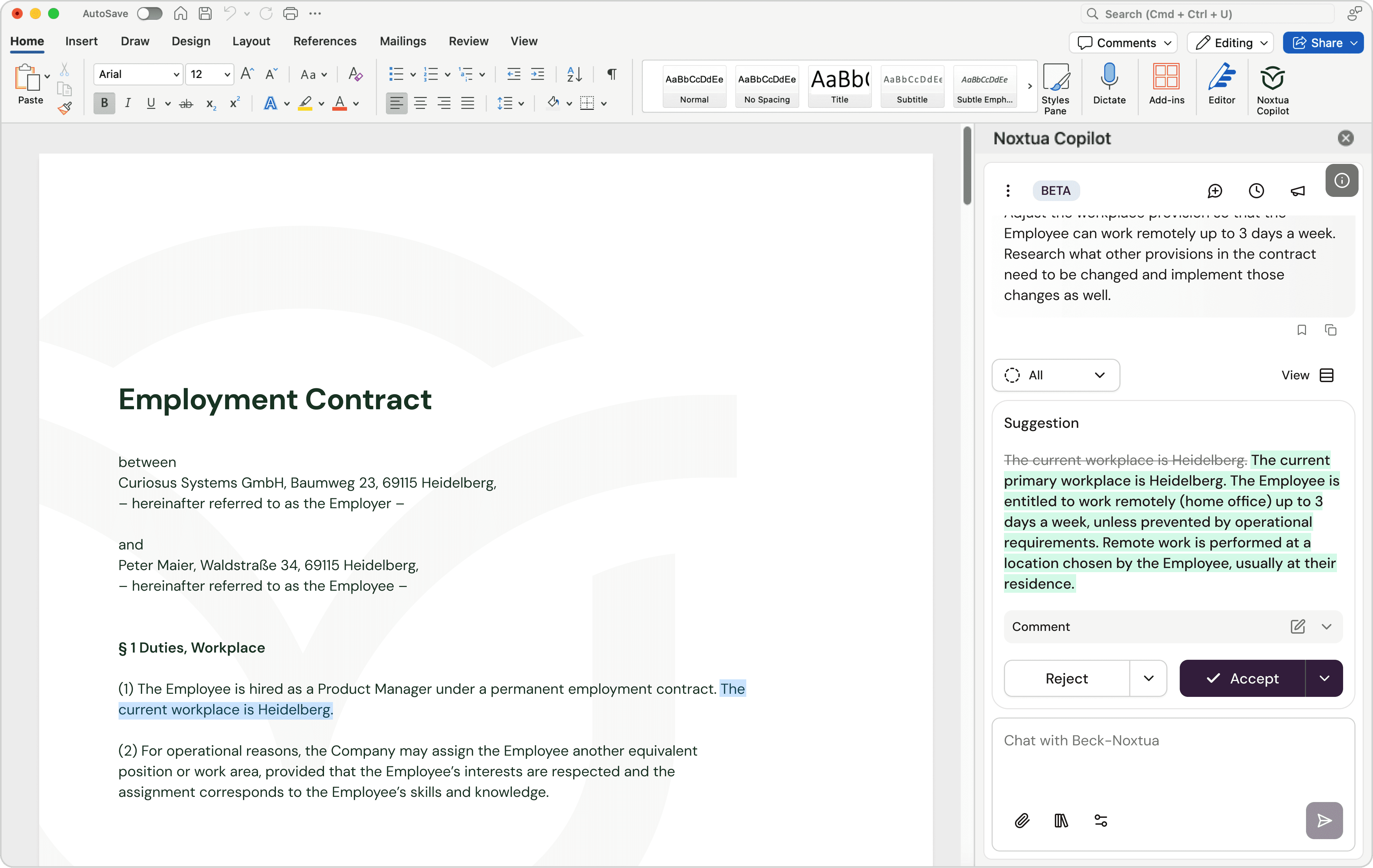
Legal professionals spend a significant portion of their day editing documents in Microsoft Word. While Legal AI can accelerate much of this manual work, switching between Word and a separate AI tool disrupts your workflow and slows you down.
Noxtua's Word Add-in eliminates this friction, allowing you to make targeted improvements to existing documents and research legal issues collaboratively with Noxtua's AI – without leaving Word.
What is the Noxtua Word Add-in?
The Word Add-in brings Noxtua's Legal AI power into your daily document work – all within the familiar Microsoft Word environment where you already spend much of your time.
When using the Word Add-in, you work in a split-screen mode, with your document on the left and Noxtua on the right. From there, you can ask Noxtua to do improvements or conduct research while keeping control over your document.
Please note: The Word add-in is optimized for the desktop application of Microsoft Word and does not support the online version that runs in your browser.
The main capabilities at a glance
Collaborative editing
Select a specific passage and ask Noxtua to revise it or request comprehensive changes to the entire document.
Contextual research
Select any text passage and run legal research on it. Noxtua provides precise answers with complete source references.
Change control
Choose whether Noxtua's improvement suggestions are automatically applied or if you want to manually accept or reject each one. For every suggestion, Noxtua provides legal reasoning explaining why the modification was recommended.
Change tracking
All accepted changes are tracked in the document along with comments explaining why they were made, ensuring full transparency and document history.
How to use the Word Add-in
1) Installation (shortly available)
Install the add-in from the Microsoft Marketplace or directly in Microsoft Word (follow this description from Microsoft).
Open the add-in, which appears on the right side of Microsoft Word.
Sign in with your existing account credentials.
2) Working with documents
Open any document you want to work on. From here, you have multiple options:
Research or ask about a specific passage: Select the text with your cursor and enter your question in the chat field.
Edit a specific passage: Select the text with your cursor and enter your request in the chat field.
Edit the entire document: Without selecting any text, enter your editing instruction in the chat field.
Accept or reject suggestions: All improvement suggestions are highlighted in green. You can accept or reject each suggestion – with or without viewing the legal reasoning comment that explains the change.
3) Configuration
You can configure two settings to better control changes in your document:
Auto-apply changes (disabled by default): Choose whether Noxtua's suggestions are applied automatically or if you want to accept or reject each one manually.
Track changes (enabled by default): All accepted changes are tracked in the document.
To adjust these settings, click the options icon below the chat field.

Dennis Engelhard