
Setting up matrix analysis
Your step-by-step guide to turning numerous documents into structured information using matrix analysis.
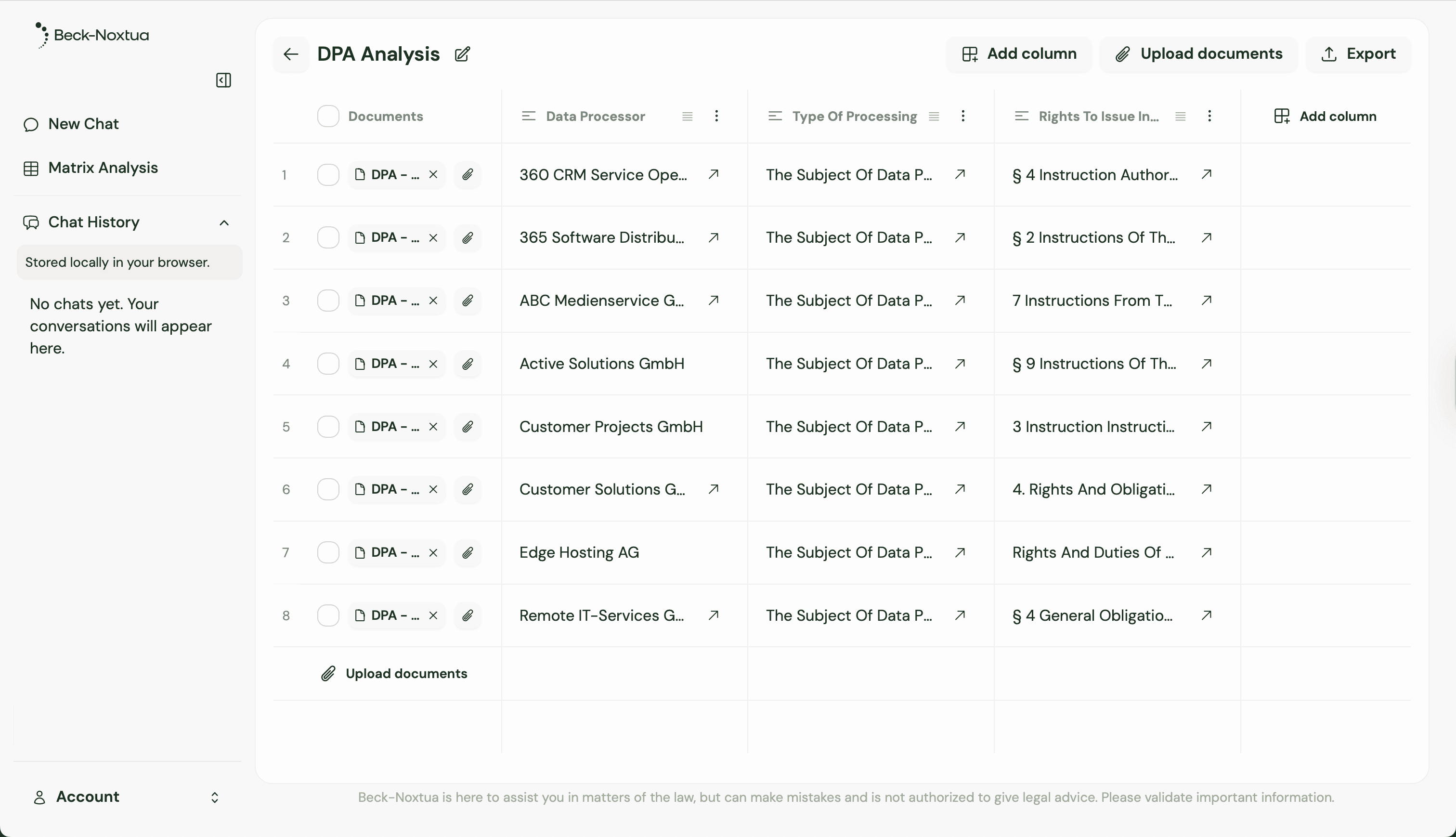
Preparation: The right documents and criteria
Before creating your first matrix analysis, clarify two things: Which documents do you want to analyze and what information do you need from these documents? Good preparation saves time later and leads to better results.
First, gather all relevant documents. These could be contracts of the same type, various court decisions on a topic, or compliance documents that need to be reviewed according to uniform criteria.
Step 1: Start a new matrix analysis
Open Beck-Noxtua and navigate to the "Matrix Analysis" section in the left navigation. Click "New Analysis" to create a new matrix. You'll now enter the workspace for your new analysis.
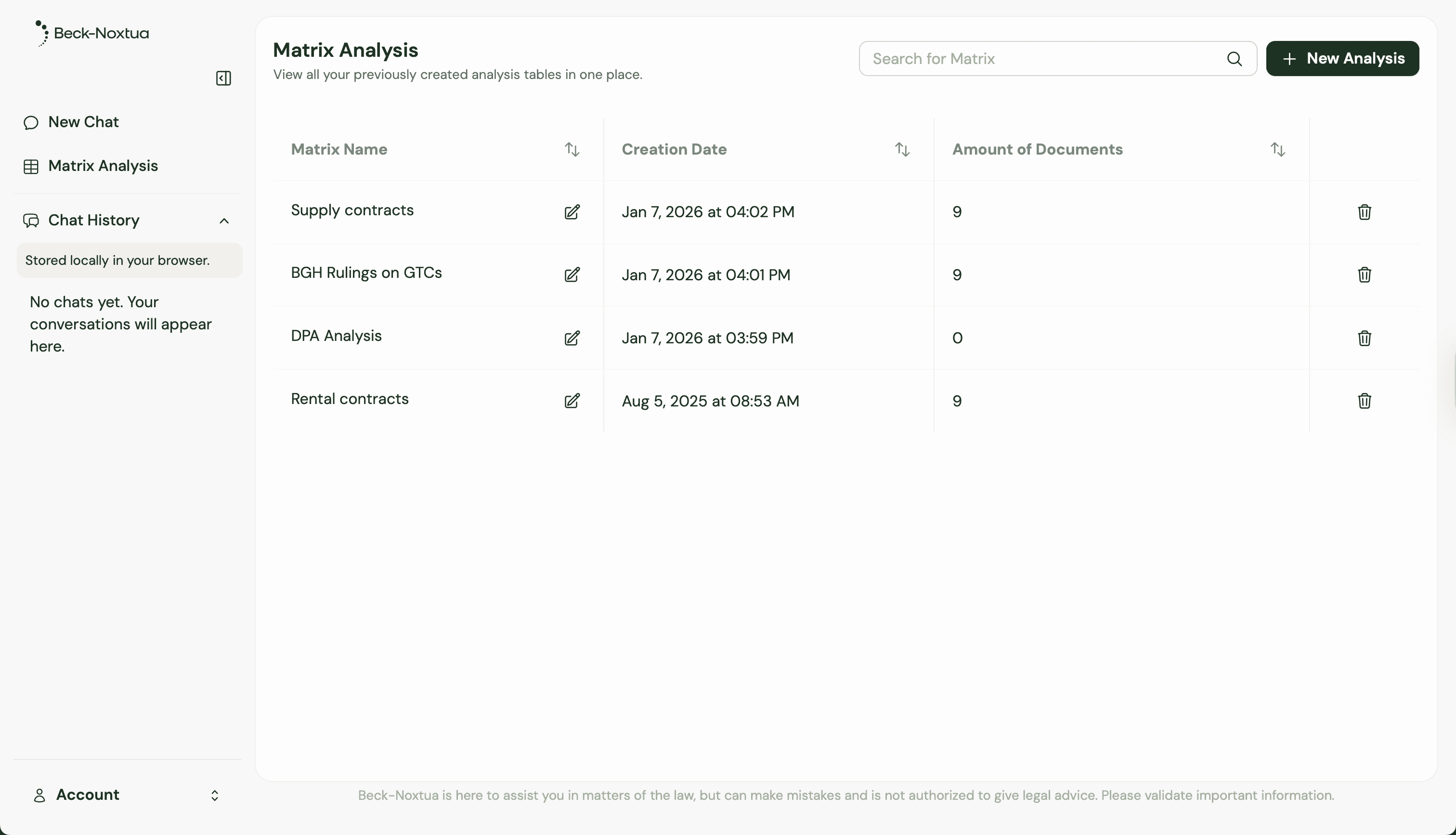
Step 2: Upload documents
Upload all documents you want to analyze up to a limit of 50 files.
Each uploaded document automatically appears as a row in your matrix. You'll see the file names and can already recognize how your matrix will be structured.
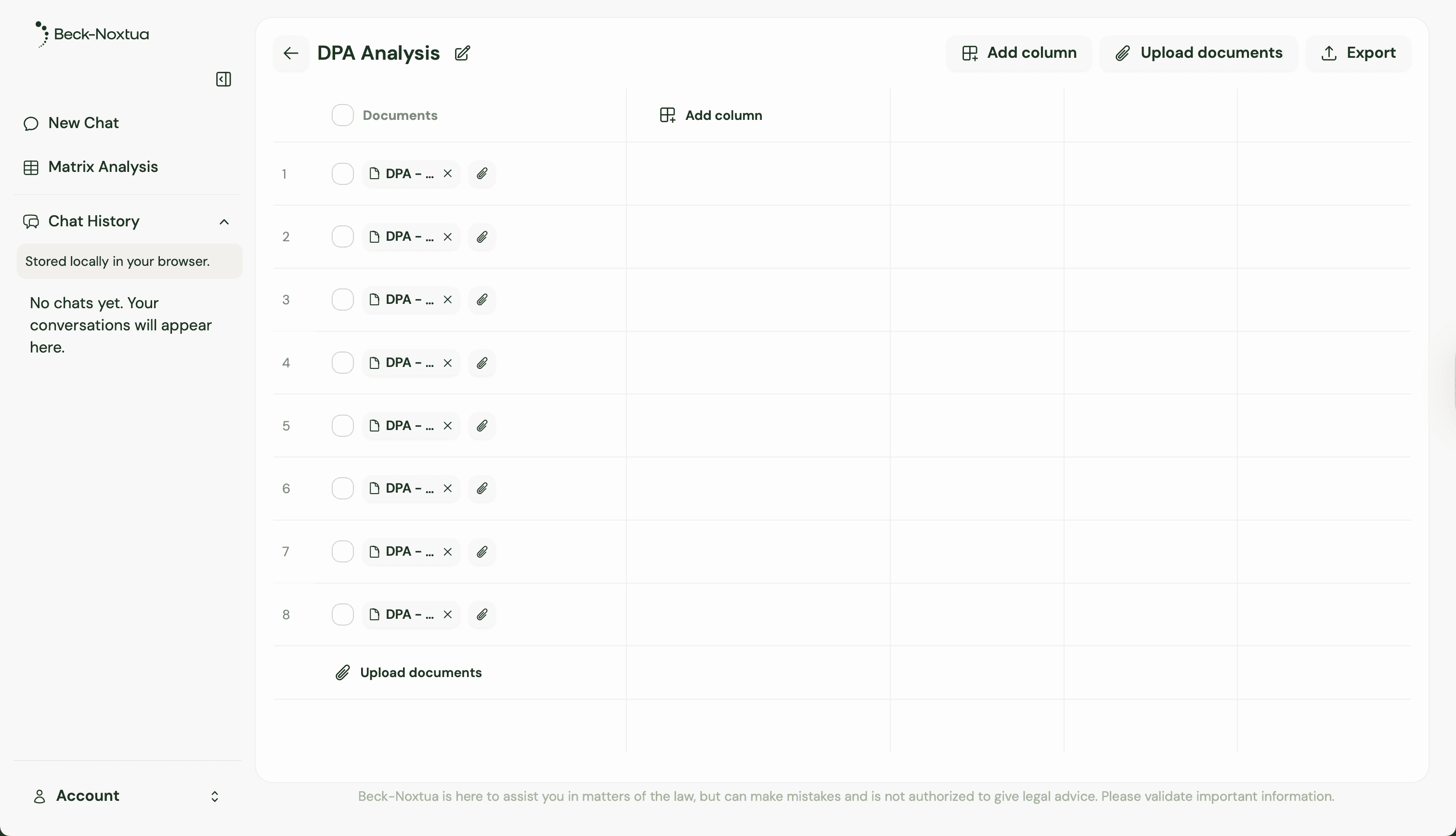
Step 3: Define the first column
Now comes the most important part: defining your evaluation criteria. Click "Add Column" to create your first criterion.
First, select the appropriate data format for your column. You can choose between:
Text is suitable for detailed answers or quotes from documents.
Number is used for measurable values like deadlines, amounts, or percentages.
Yes/No is perfect for simple evaluations like "clause present" or "condition met."
Categories is useful for assessments like "low/medium/high" or "green/yellow/red."
Date is used when you want to extract specific time points.
Bullet list helps you create a structured overview of information.
For our example with data processing agreements, we'll start with the processor. Select "Text" as the format and enter a meaningful column title.
Step 4: Formulate the appropriate prompt
Each column needs a prompt that explains to the AI what information it should extract from each document. Make this prompt as precise as possible.
For the processor datapoint, your prompt could be: "Who is the processor according to the contract? Extract only the party's name."
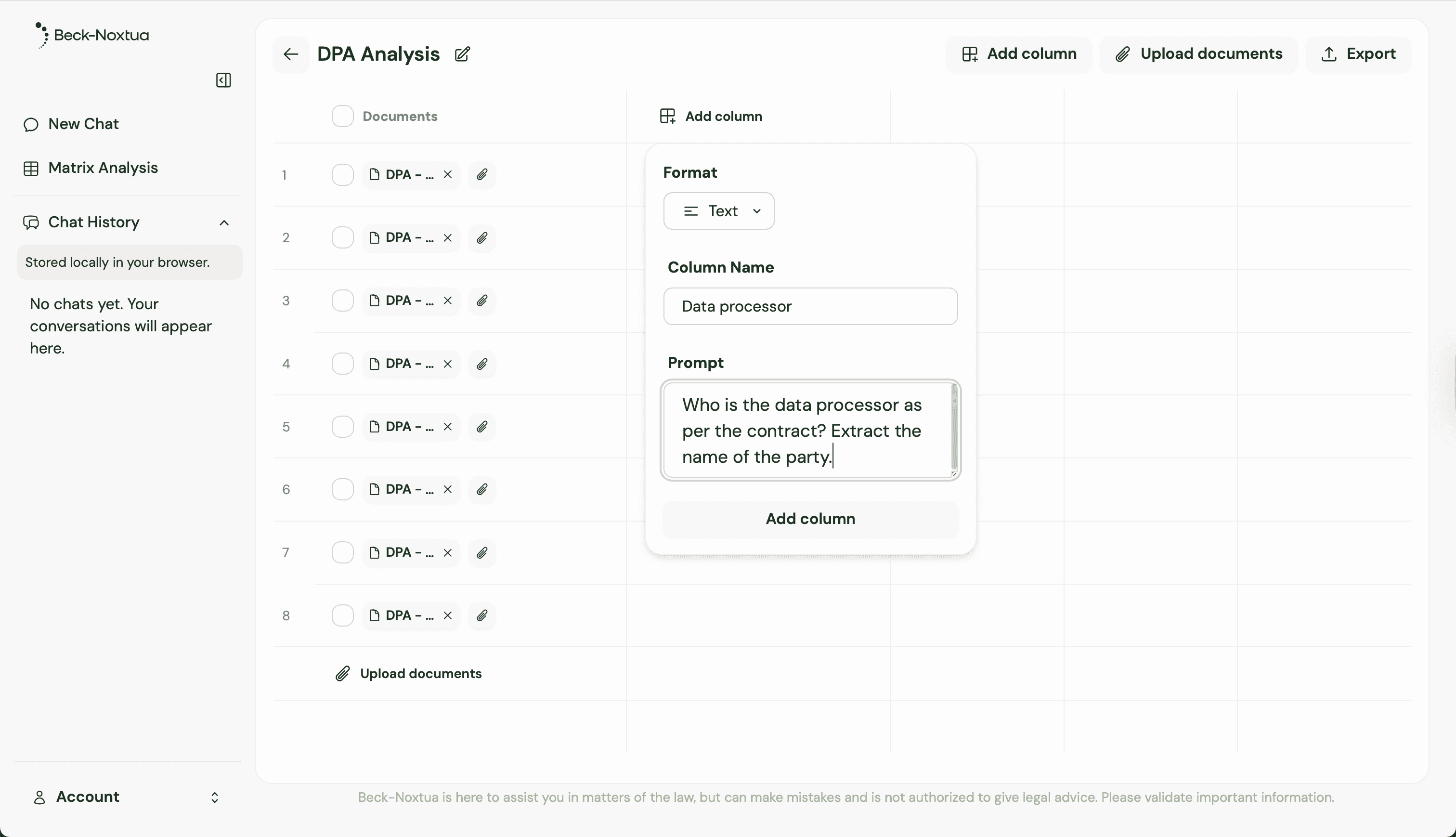
Once you've saved the prompt, Noxtua begins analyzing all uploaded documents. You'll see the results being entered column by column.
Step 5: Add more columns
Now add more columns to capture all important aspects of your documents. For data processing agreements, another column could be a bullet list for the type of processing with the prompt: "What is the subject of data processing according to the contract, meaning for what purpose and what data is processed?"
Step 6: Review and optimize results
While Noxtua fills your matrix, you should spot-check the results. Look at individual entries and compare them with the original documents. If results don't meet your expectations, you may need to adjust the prompts.
Simply click the edit icon next to the column title and refine your prompt. The matrix automatically updates with the new results.
Step 7: Export and share results
Now your completed matrix provides a structured overview of all important aspects of your documents. To use the results for further purposes, click "Export" and you'll receive a file in .xlsx format.
Tips for successful matrix analyses
Tip 1: If you want to analyze very large document volumes, it's recommended to test your prompts with a few documents first. This saves time and computing capacity. If the results are satisfactory, you can upload the remaining documents to expand the AI analysis.
Tip 2: Use the Categories format to create quick overviews. A traffic light system or risk categories not only make your matrix clearer but also help identify action items immediately.
Tip 3: For more complex analyses, you can also combine multiple prompts in one column or create references between different columns. For example, if you want to create a risk assessment based on the results of several other columns, you can specify this in your prompt.

Dennis Engelhard